Monitoring CPU usage is one of the most critical aspects of maintaining a healthy IT infrastructure. When using PRTG Network Monitor, administrators often want CPU graphs to display a fixed maximum scale of 100% for better clarity and consistent visualization. By default, PRTG may automatically adjust graph scaling based on usage patterns, which can sometimes make it harder to quickly interpret performance trends. This guide explains, step by step, how to set the PRTG CPU graph to a 100% scale for clearer monitoring and reporting.
TL;DR: To set the PRTG CPU graph to a 100% scale, open the desired CPU sensor, go to its channel settings, and manually adjust the graph scaling options by setting the maximum value to 100. Disable automatic scaling if necessary. This ensures consistent visualization across devices. It improves readability, comparison, and reporting accuracy.
Why Set the CPU Graph to a Fixed 100% Scale?
PRTG’s automatic scaling feature dynamically adjusts graphs based on observed minimum and maximum values. While this can make minor changes more visible, it can also distort perception. For example, a CPU spike from 10% to 40% might visually appear dramatic if the graph auto-scales to 50%.
Setting the graph to a fixed 100% scale provides several benefits:
- Consistency across multiple devices and sensors
- Accurate visual interpretation of usage trends
- Easier reporting for management
- Standardized monitoring dashboards
When every CPU sensor shares the same maximum scale, comparisons become far more reliable.
Understanding CPU Sensors in PRTG
Before adjusting graph settings, it is important to understand how CPU monitoring works in PRTG.
PRTG typically monitors CPU usage through one of the following sensor types:
- SNMP CPU Load Sensor
- WMI CPU Load Sensor
- Windows CPU Load Sensor
- SSH Load Average Sensor
- VMware Host Hardware Sensor
Each sensor contains one or more channels. CPU utilization is measured as a percentage, which naturally ranges from 0% to 100%. However, PRTG’s graphical display may not always reflect this maximum unless configured manually.

Step-by-Step Guide: Setting the CPU Graph to 100% Scale
Step 1: Open the Desired CPU Sensor
First, log in to the PRTG web interface. Navigate to the device containing the CPU sensor you want to modify. Click directly on:
- The specific CPU sensor
This will open the sensor’s detailed overview page, which displays live data, historical graphs, and configuration settings.
Step 2: Identify the Relevant Channel
Most CPU sensors have at least one channel labeled:
- Total
- CPU Load
- Processor Usage
Click on the channel name to open its detailed channel settings.
Step 3: Edit Channel Settings
After opening the channel page:
- Click the Settings tab.
- Scroll down to the Display Settings section.
- Look for scaling or vertical axis configuration options.
If automatic scaling is enabled, disable it to allow manual configuration.
Step 4: Set Maximum Value to 100
Inside the channel settings, locate the field for:
- Maximum Value
Manually enter:
100
This ensures that the top of the graph is always fixed at 100%, regardless of actual usage fluctuations.
Step 5: Save Changes
Click Save at the bottom of the page. PRTG will reload the sensor page.
The graph will now consistently display CPU usage with a maximum scale of 100%.
Adjusting Graph Scaling for Reports and Dashboards
Setting the channel maximum to 100% affects sensor-level visualization. However, administrators may also want to adjust scaling for:
- Custom dashboards
- Reports
- Maps
For Dashboards (Maps)
When editing PRTG maps:
- Open the Map Designer.
- Select the graph object.
- Check graph display options for scaling preferences.
Ensure the graph references the updated channel configuration.
For Reports
When generating reports:
- Go to Reports.
- Edit or create a report template.
- Verify that channels with fixed scaling are used.
This prevents inconsistent graph interpretations in PDF or HTML export formats.
Common Issues and How to Fix Them
1. Automatic Inheritance Overrides Manual Settings
PRTG allows inheritance of settings from parent devices or groups. If manual changes do not apply:
- Check if inheritance is enabled.
- Disable inheritance for that specific channel.
2. Multiple Channels with Different Scales
Some CPU sensors display multiple cores separately. Each channel may need individual maximum configuration.
3. Graph Still Appears Auto-Scaled
Clear the browser cache or refresh the interface to ensure settings are reflected correctly.
Best Practices for CPU Monitoring in PRTG
Setting the graph scale is only one part of effective CPU monitoring. Administrators should also follow these best practices:
- Set Warning Threshold: 75–85%
- Set Error Threshold: 90–95%
- Use notifications for sustained high usage
- Monitor historical trends weekly or monthly
- Compare peak patterns across similar servers
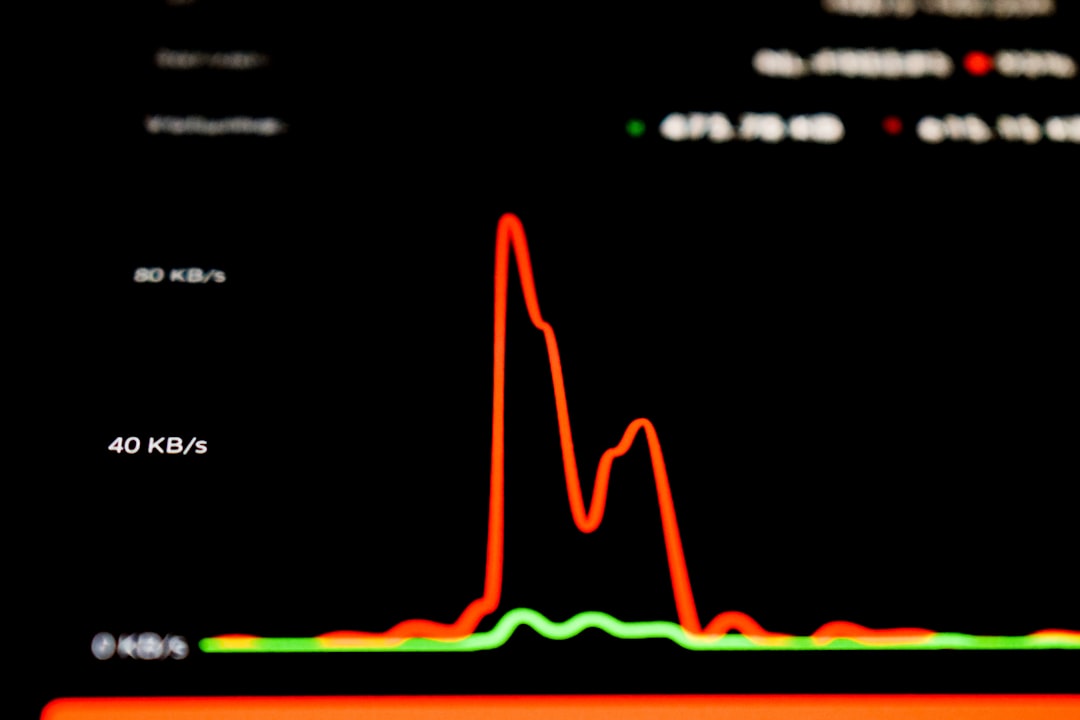
A properly scaled graph makes threshold breaches visually clear and easier to explain to stakeholders.
Advantages of Fixed 100% Graph Scaling
There are several operational advantages to standardizing graphs:
Improved Visual Clarity
Even moderate CPU changes are displayed in correct proportion.
Accurate Performance Evaluation
Administrators see true capacity utilization rather than visually exaggerated spikes.
Simplified Troubleshooting
When CPU hits 100%, it is immediately obvious on the graph.
Professional Reporting
Reports look cleaner and more trustworthy when scaling is consistent.
Automating the Configuration Across Multiple Sensors
In large environments, adjusting each sensor manually can be time-consuming. Instead:
- Clone a properly configured sensor
- Use device templates
- Apply settings at the group level when possible
This ensures consistent configuration across dozens or even hundreds of devices.
When Not to Use a Fixed 100% Scale
Although fixed scaling is generally preferred for CPU monitoring, there are specific cases where dynamic scaling may be helpful:
- Short-term debugging of minor fluctuations
- Low-load systems where precision visibility is needed
- Performance tuning scenarios
However, for most production environments, fixed scaling remains the recommended approach.
Frequently Asked Questions (FAQ)
1. Why does PRTG auto-scale CPU graphs by default?
PRTG automatically scales graphs to improve visibility of small changes. This helps detect subtle variations but may distort overall utilization perception.
2. Will setting the maximum to 100 affect alerts?
No. Adjusting the graph scale does not change threshold settings or alert triggers. It only affects visualization.
3. Do I need to configure each CPU core separately?
If your sensor monitors individual cores as separate channels, each one may require manual adjustment unless inherited settings manage them collectively.
4. Can I revert back to automatic scaling?
Yes. Simply return to channel settings and re-enable automatic scaling or remove the manually set maximum value.
5. Does this affect historical data?
No. Changing graph scaling only modifies display settings. Historical CPU data remains unchanged.
6. Is fixed scaling recommended for management reports?
Yes. Fixed 100% scaling ensures clarity and consistency across reporting documents, making them easier to interpret.
7. Can this be done in the PRTG desktop app?
Yes. The configuration process is nearly identical in both the web interface and the desktop application.
Final Thoughts
Setting the PRTG CPU graph to a fixed 100% scale is a simple yet powerful configuration tweak. It enhances clarity, improves reporting accuracy, and standardizes monitoring visuals across the infrastructure. By following this quick setup guide, administrators can ensure that CPU metrics are displayed in a consistent, professional, and easily interpretable manner.
With just a few configuration changes, PRTG becomes an even more effective tool for proactive performance management.