Few computer problems are as distracting as a flickering monitor. One moment you are writing, gaming, editing, or browsing normally; the next, the screen pulses, flashes, dims, or jitters just enough to make your eyes tired and your patience disappear. The good news is that monitor flickering is usually caused by a small set of common issues, and many of them can be fixed without replacing your display.
TLDR: Monitor flickering is often caused by a loose cable, incorrect refresh rate, outdated graphics driver, power issue, or failing display hardware. Start with the simplest checks: reconnect the cable, try another port, update drivers, and adjust the refresh rate. If the flicker happens only in certain apps or games, software settings may be the culprit. If it continues across devices and cables, the monitor itself may need repair or replacement.
What Does Monitor Flickering Actually Mean?
When people say their monitor is flickering, they may be describing several different symptoms. The screen might briefly go black, flash white, pulse in brightness, show horizontal lines, or appear to “shake.” Some flicker is constant, while other flicker appears only when launching a game, moving the mouse, waking the computer from sleep, or using a specific app.
Identifying the pattern is important because it points you toward the cause. A screen that flickers only while gaming often suggests a refresh rate, graphics driver, or adaptive sync issue. A monitor that flickers when the desk is bumped may have a loose cable or damaged connector. A display that flickers even when plugged into another computer may have an internal hardware problem.
Start With the Easiest Fix: Check Your Cables
The first thing to inspect is the connection between your computer and monitor. A surprising number of flickering problems come from a cable that is slightly loose, bent, worn, or not fully seated. This is especially common with DisplayPort, HDMI, USB C, and older VGA cables.
Turn off your monitor and computer, then unplug and reconnect the video cable at both ends. Make sure it clicks or fits firmly into place. If your cable has screws, such as VGA or DVI, tighten them gently. Avoid forcing anything, because damaged ports can create even worse problems.
Next, try a different cable if you have one available. Cables can fail internally even when they look fine from the outside. A cheap, damaged, or low quality cable may also struggle with high resolutions and refresh rates, especially at 144 Hz, 165 Hz, 240 Hz, 4K, or ultrawide resolutions.
- HDMI: Try a certified high speed or ultra high speed cable for higher resolutions.
- DisplayPort: Use a quality DisplayPort cable, especially for high refresh rate monitors.
- USB C: Make sure the cable supports video output, not just charging or data.
- VGA: Consider upgrading if possible, as analog signals are more prone to interference.
Try a Different Port or Input
If reconnecting the cable does not help, move to another port. Plug the monitor into a different HDMI or DisplayPort connection on your graphics card. If you are using a desktop computer, make sure the cable is connected to the dedicated graphics card rather than the motherboard, unless you are intentionally using integrated graphics.
You can also test another input on the monitor itself. For example, if HDMI flickers but DisplayPort works perfectly, the problem may be with the HDMI port, cable, or configuration. If all inputs flicker, the issue may be more general.
Tip: If you use adapters, docking stations, splitters, or KVM switches, temporarily remove them from the setup. Connect the monitor directly to the computer. These devices can introduce signal problems, particularly with high refresh rates or multiple displays.
Adjust the Refresh Rate
The refresh rate controls how many times per second your monitor updates the image. If your computer is set to a refresh rate that the monitor or cable cannot handle reliably, flickering may occur. This is common after driver updates, new monitor installations, or switching between display modes.
On Windows, go to Settings > System > Display > Advanced display, then choose the correct refresh rate from the list. On macOS, open System Settings > Displays and check the refresh rate options. If you are using a gaming monitor, try stepping down from 144 Hz to 120 Hz or from 240 Hz to 144 Hz to see whether the flicker stops.
Sometimes the highest advertised refresh rate only works reliably with a specific cable type. For example, a 4K monitor may need DisplayPort or HDMI 2.1 to run at high refresh rates without problems. If lowering the refresh rate fixes the flicker, your cable, port, or graphics hardware may not be keeping up with the current setting.
Update or Reinstall Graphics Drivers
Graphics drivers act as the communication layer between your operating system, graphics card, and monitor. When drivers are outdated, corrupted, or incompatible, flickering can appear suddenly. This often happens after a major Windows update, a new GPU installation, or a monitor upgrade.
Visit the official website for your GPU manufacturer, such as NVIDIA, AMD, or Intel, and download the latest driver for your graphics hardware. Avoid relying only on generic system updates if the problem is persistent. After installing the driver, restart your computer and test the monitor again.
If the flicker began immediately after a driver update, the newest driver may be the problem. In that case, roll back to a previous stable version. Windows Device Manager includes a Roll Back Driver option when available, or you can manually install an older version from the manufacturer’s site.
Check Display Settings and Scaling
Incorrect display settings can also create visual instability. Make sure your monitor is running at its native resolution. For example, a 1920 by 1080 monitor should usually be set to 1920 by 1080, while a 2560 by 1440 monitor should use 2560 by 1440. Running non native resolutions can sometimes cause blurriness, jitter, or flicker-like behavior.
Scaling settings may also play a role, especially in multi monitor setups. If one monitor is set to 100 percent scaling and another is set to 150 percent, certain apps may behave strangely when moved between screens. While this usually does not cause hardware flicker, it can create redraw issues that look similar.
Also check whether HDR, Night Light, dynamic contrast, or automatic brightness features are enabled. Some monitors flicker when switching brightness modes or when software attempts to adjust color temperature in real time.
Disable Adaptive Sync, G Sync, or FreeSync Temporarily
Adaptive sync technologies such as NVIDIA G Sync, AMD FreeSync, and VESA Adaptive Sync help reduce screen tearing in games. However, they can sometimes cause brightness flicker, especially in menus, loading screens, or games with unstable frame rates.
If your monitor flickers primarily while gaming, open your GPU control panel and temporarily disable adaptive sync. You can also turn off FreeSync or G Sync in the monitor’s on screen menu if the option is available. If the flicker stops, the issue may not be a defective monitor but a compatibility or frame pacing problem.
To reduce flicker while keeping adaptive sync enabled, try these fixes:
- Cap the game’s frame rate slightly below the monitor’s maximum refresh rate.
- Enable vertical sync in the graphics driver or game settings.
- Turn off overdrive modes that are set too aggressively.
- Update the game, GPU driver, and monitor firmware if available.
Look for Power Problems
Power instability can cause monitors to flicker, dim, or black out briefly. Make sure the power cable is firmly connected to the monitor and wall outlet. If your monitor uses an external power brick, check that the brick is not unusually hot, buzzing, or damaged.
Try plugging the monitor into a different outlet. If it is connected to a power strip, surge protector, or extension cord, test it directly in the wall. Overloaded power strips and aging surge protectors can create inconsistent power delivery.
Electrical interference can also be a factor. Large speakers, fluorescent lamps, space heaters, mini fridges, and other appliances near your monitor or cables may introduce signal noise. Move power hungry devices away from your display setup and keep video cables separated from power cables when possible.
Test With Another Device
One of the best troubleshooting steps is to connect the monitor to a different device, such as a laptop, game console, or another desktop computer. If the monitor works perfectly with another device, your original computer, cable, port, driver, or settings are likely responsible. If the monitor flickers on multiple devices, the monitor itself becomes the main suspect.
You can also test your computer with a different monitor. If a second display works normally, your original monitor may have a hardware issue. If the second display flickers too, the problem may be related to your graphics card, operating system, or power environment.
Consider Multi Monitor Complications
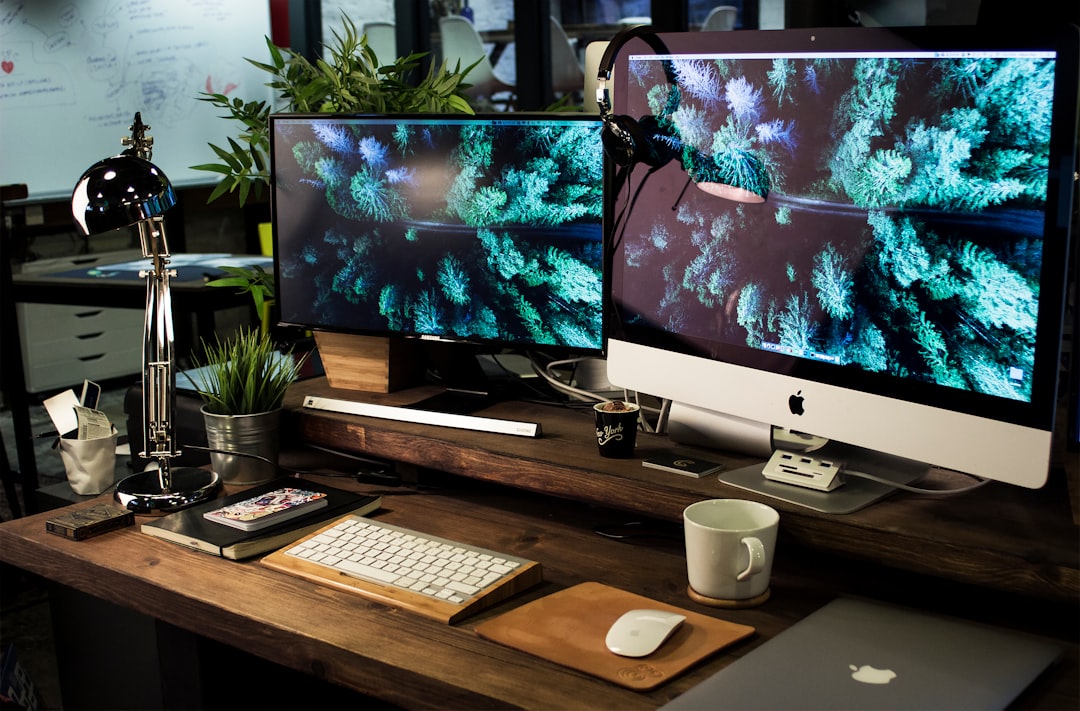
Flickering can become more complicated when you use two or more monitors. Different refresh rates, resolutions, cable types, and graphics outputs can occasionally conflict. For example, one monitor running at 60 Hz and another at 144 Hz may behave oddly on certain systems, especially after sleep or when hardware acceleration is active in apps.
To troubleshoot, disconnect all monitors except the one that flickers. If the flicker disappears, reconnect the other displays one at a time. Try matching refresh rates where possible, or move each monitor to a different port. Also check whether the issue happens only when a browser, video player, or design app is open on a specific screen.
Turn Off Hardware Acceleration in Apps
If flickering appears only in certain programs, the monitor may not be the real problem. Browsers, communication apps, video editors, and office programs often use hardware acceleration to improve performance. When hardware acceleration conflicts with your graphics driver, it can cause flashing, black boxes, or screen flicker inside that app.
Check the settings menu of the affected program and look for Hardware Acceleration. Disable it, restart the app, and see whether the flicker stops. This is especially worth trying if your desktop looks stable but the screen flickers when using a browser, streaming video, or sharing your screen.
Inspect the Monitor’s Own Settings
Most monitors have an on screen display menu controlled by buttons or a joystick on the display. Explore this menu and look for settings such as response time, overdrive, dynamic contrast, eco mode, local dimming, motion blur reduction, or backlight strobing.
Some of these features intentionally manipulate brightness or backlight behavior. For example, motion blur reduction can create visible flicker because it strobes the backlight. Dynamic contrast may cause noticeable pulsing as the monitor adjusts brightness based on the image. Try resetting the monitor to factory defaults, then reconfigure only the settings you truly need.
When Flickering Suggests Hardware Failure
If you have tested multiple cables, ports, devices, drivers, outlets, and settings, and the flicker still remains, the monitor may have a failing component. Common hardware causes include a worn backlight, faulty power board, damaged input board, loose internal ribbon cable, or aging capacitors.
Hardware flicker often gets worse over time. It may appear after the monitor warms up, disappear when the brightness is lowered, or happen more frequently at certain angles. If the monitor is still under warranty, contact the manufacturer before opening it or attempting repairs. Opening a monitor can be dangerous because internal components may retain electrical charge.
Quick Troubleshooting Checklist
- Reconnect the video cable at both ends.
- Try a different HDMI, DisplayPort, or USB C cable.
- Use another port on the computer and monitor.
- Set the monitor to its native resolution.
- Adjust the refresh rate to a supported value.
- Update or roll back the graphics driver.
- Disable G Sync, FreeSync, or adaptive sync temporarily.
- Test another power outlet.
- Remove docks, adapters, splitters, and KVM switches.
- Test the monitor with another device.
- Reset the monitor’s built in settings.
Final Thoughts
A flickering monitor may look alarming, but the cause is often simple. Start with the basics: cables, ports, refresh rate, and drivers. Then move on to power, software settings, adaptive sync, and multi monitor behavior. By testing one change at a time, you can narrow down whether the issue comes from the monitor, the computer, the cable, or a specific setting.
If none of the fixes work and the display flickers across multiple devices, it may be time to consider professional repair or replacement. Until then, a careful troubleshooting process can save you money, reduce frustration, and get your screen back to being steady, sharp, and comfortable to use.