
Long videos are great. They hold stories, interviews, lessons, podcasts, webinars, and funny moments. But people online often want the snack size version. They want quick clips. They want the best bits. That is where video cutting tools come in. These tools turn long videos into short clips for TikTok, Instagram Reels, YouTube Shorts, LinkedIn, and more.
TLDR: The best tools to cut long videos into short clips are easy, fast, and smart. CapCut is great for beginners, Descript is great for editing by text, and Opus Clip is great for AI-powered social clips. If you want pro power, try Adobe Premiere Pro, Final Cut Pro, or DaVinci Resolve. Pick the tool that fits your skill level, budget, and platform.
Why Cut Long Videos Into Short Clips?
Short clips are everywhere. They are quick to watch. They are easy to share. They also help people find your longer content.
Think of a long video like a pizza. It is tasty. But not everyone wants the whole pizza at once. Short clips are the slices. Easy to grab. Easy to enjoy.
You can cut clips from:
- Podcasts
- Webinars
- Online classes
- YouTube videos
- Interviews
- Live streams
- Product demos
- Gaming videos
A good clip can get attention fast. It can make people laugh. It can teach one clear idea. It can even send viewers to your full video.

What Makes a Great Video Cutting Tool?
Not every tool is the same. Some are simple. Some are powerful. Some use AI magic. Some make you do the work by hand.
Here are the main things to look for:
- Easy trimming: You should cut the start and end fast.
- Split tools: You should break one long video into many small pieces.
- Auto captions: Most people watch short videos without sound.
- Vertical format: Shorts, Reels, and TikToks need a tall frame.
- Templates: These save time and make clips look clean.
- AI clip finding: Some tools find the best moments for you.
- Fast export: Waiting forever is not fun.
- Good pricing: Free is nice. Affordable is better.
1. CapCut
Best for: Beginners, creators, TikTok users, fast edits.
CapCut is one of the easiest tools for cutting long videos into short clips. It works on mobile, desktop, and web. That means you can edit on your phone while sitting on the couch. Very fancy. Very comfy.
CapCut is great for social media. It has preset sizes for TikTok, Reels, and Shorts. You can trim clips, split them, add music, add text, and create captions.
It also has fun effects. Some are useful. Some are wild. Some will make your clip look like it drank three energy drinks. Use them wisely.
Why people like it:
- Very easy to learn
- Great for vertical videos
- Good auto captions
- Lots of effects and templates
- Free plan available
Small catch: Some advanced features may need a paid plan. Also, too many effects can make your clip feel messy.
2. Descript
Best for: Podcasts, interviews, talking head videos, text-based editing.
Descript feels like editing a document. You upload your video. It turns the speech into text. Then you can cut the video by deleting words from the transcript.
Yes, really. If someone says “um” thirteen times, you can remove those words like you are fixing a typo. It feels like magic. Friendly magic. Not scary wizard magic.
Descript is perfect for long talking videos. It helps you find quotes, remove filler words, and make clean clips. You can also add captions and resize videos for social platforms.
Why people like it:
- Edit video by editing text
- Great for podcasts and interviews
- Removes filler words
- Good captions
- Simple screen recording tools
Small catch: It is best for speech-based videos. If your video is mostly action, music, or gaming, another tool may work better.
3. Opus Clip
Best for: AI social clips, fast repurposing, creators with lots of video.
Opus Clip is built for one job. It takes long videos and turns them into short clips. It uses AI to find moments that may perform well online.
You upload a long video. The tool scans it. Then it suggests short clips. It can add captions, reframe the video, and give each clip a score. It is like having a tiny editor robot. A robot with strong opinions.
This tool is especially helpful for podcasts, webinars, interviews, and educational videos. It can save hours of editing time.
Why people like it:
- Finds clip-worthy moments with AI
- Adds captions automatically
- Creates vertical clips
- Good for bulk content
- Fast and simple workflow
Small catch: AI is smart, but not perfect. You should still review the clips. Sometimes the “best” moment is not actually the best moment. Sometimes it is just a person nodding with great confidence.
4. Adobe Premiere Pro
Best for: Professional editors, agencies, serious creators.
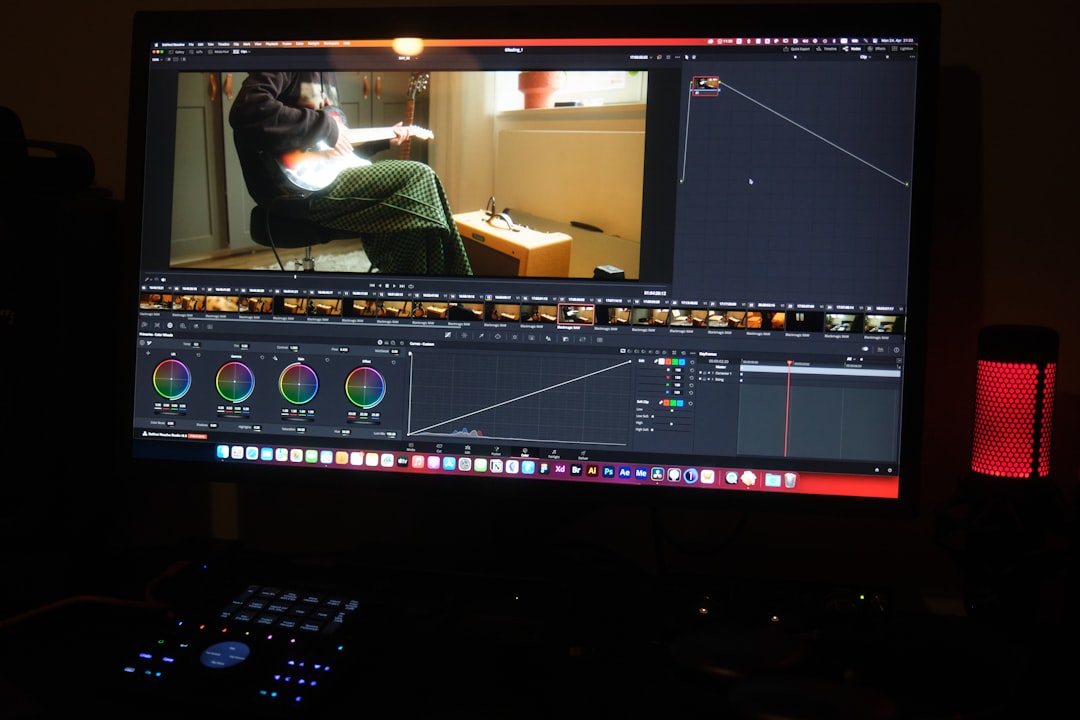
Adobe Premiere Pro is a powerful video editor. It can cut long videos into short clips with total control. You can trim, split, color correct, mix audio, add graphics, and export in many formats.
Premiere Pro is used by many professionals. It is not the simplest tool. But it is very flexible. Once you learn it, you can do almost anything.
It also has helpful features for social media. You can auto transcribe speech. You can create captions. You can reframe videos for vertical screens.
Why people like it:
- Very powerful
- Works for simple and complex edits
- Great timeline control
- Professional export settings
- Strong caption and audio tools
Small catch: It has a learning curve. It also requires a subscription. If you only need quick clips, it may feel like using a spaceship to visit the grocery store.
5. Final Cut Pro
Best for: Mac users, fast professional editing, smooth performance.
Final Cut Pro is a strong video editor for Mac. It is fast, clean, and powerful. Many creators love it because it handles large video files well.
You can cut a long video into clips, add titles, fix audio, create captions, and export for social platforms. Its magnetic timeline is different from many editors. Some people love it. Some people need time to adjust.
If you use a Mac and want a pro-level tool without a monthly subscription, this is a great choice.
Why people like it:
- Fast on Mac computers
- Great for large video projects
- One-time purchase
- Clean interface
- Pro editing features
Small catch: It only works on Mac. Also, beginners may need time to learn it.
6. DaVinci Resolve
Best for: Free professional editing, color correction, advanced users.
DaVinci Resolve is shockingly powerful. The free version can do a lot. You can cut clips, edit audio, add effects, create captions, and color grade like a movie wizard.
It is famous for color correction. But it is also a full video editor. If you want a serious tool without spending money right away, start here.
There is a “Cut” page made for fast editing. This helps when you need to break long footage into smaller clips quickly.
Why people like it:
- Very strong free version
- Professional editing tools
- Excellent color features
- Good for YouTube and social clips
- Works on Windows, Mac, and Linux
Small catch: It can feel complex at first. There are many buttons. Do not panic. The buttons are not judging you.
7. VEED
Best for: Online editing, captions, simple social clips.
VEED is a browser-based video editor. You do not need to install heavy software. Just upload your video and start cutting.
It is great for quick edits. You can trim, split, crop, add subtitles, add text, and resize your video. It is friendly for people who do not want a complex timeline.
VEED also has useful tools for teams. You can create videos for social media, ads, training, or internal updates.
Why people like it:
- Works in your browser
- Easy to use
- Good subtitle tools
- Fast resizing for social platforms
- No big software download
Small catch: Uploading large videos can take time. Also, some features are behind paid plans.
8. Kapwing
Best for: Teams, simple clips, meme-style edits, web editing.
Kapwing is another simple browser editor. It is useful for turning long videos into short social clips. You can cut, trim, caption, crop, and add text.
Kapwing is also good for team projects. You can save brand styles, share work, and keep content organized.
It feels light and friendly. It is not trying to scare you with a giant control panel. That is always nice.
Why people like it:
- Simple web editor
- Good for captions and text
- Helpful team features
- Easy resizing
- Great for quick social content
Small catch: Like many web tools, very long uploads may take extra time. The free plan may also include limits.
9. Riverside
Best for: Recording podcasts and making clips from them.
Riverside is known for high-quality remote recording. But it also helps you create short clips from long recordings.
If you record interviews or podcasts, this is useful. You can record, transcribe, edit, and create clips in one place. It also has AI features that help find highlights.
That means you do not have to move files between many apps. Less file chaos. More happy editing.
Why people like it:
- Great remote recording
- Useful AI clip tools
- Good for podcasts
- Transcripts and captions
- Clean workflow
Small catch: It is best if you also use it to record. If you only need editing, another tool may be simpler.
10. YouTube Studio
Best for: Simple cuts to YouTube videos.
YouTube Studio has basic editing tools. You can trim parts of a video after upload. You can also cut out sections.
It is not a full editing tool. It will not make fancy clips for every platform. But it is handy for quick fixes. If you need to remove a mistake from a YouTube video, it can help.
Why people like it:
- Free for YouTube creators
- No extra software needed
- Good for simple trims
- Works after upload
Small catch: It is limited. For social clips, use another editor.
Which Tool Should You Pick?
Here is the simple version.
- Pick CapCut if you want easy social clips.
- Pick Descript if you edit podcasts or interviews.
- Pick Opus Clip if you want AI to find clips fast.
- Pick Premiere Pro if you need professional control.
- Pick Final Cut Pro if you are a Mac user who wants speed.
- Pick DaVinci Resolve if you want powerful tools for free.
- Pick VEED or Kapwing if you want quick browser editing.
- Pick Riverside if you record podcasts and interviews.
Tips for Making Short Clips That People Watch
Cutting the clip is only step one. You also need to make it interesting.
Use these simple tips:
- Start with action. Do not waste the first three seconds.
- Keep one idea per clip. Simple wins.
- Add captions. Many people watch without sound.
- Use vertical format. It fits phones better.
- Cut boring pauses. Silence is not always golden.
- Add a clear title. Tell people why they should watch.
- End with a reason to act. Ask viewers to follow, comment, or watch more.
A good short clip feels sharp. It gets to the point. It does not wander around looking for snacks.
Final Thoughts
The best tool depends on your needs. If you want fast and fun, use CapCut. If you want to edit words instead of timelines, use Descript. If you want AI to do the first draft, try Opus Clip.
If you are ready for serious editing, choose Premiere Pro, Final Cut Pro, or DaVinci Resolve. If you want browser tools, try VEED or Kapwing.
The main goal is simple. Take your long video. Find the gold. Cut it into small, shiny pieces. Then share those pieces with the world.
Your long video is not too long. It is just waiting to become many great short clips.