High frame rate video can make motion feel unusually crisp, smooth, and immediate. If you are editing gaming footage, sports clips, product demonstrations, action camera material, VR content, or footage intended for slow motion, you may want to export at more than 60 frames per second from DaVinci Resolve. The good news is that Resolve can handle high frame rate workflows, but the export frame rate depends heavily on how your project and timeline are configured before you reach the Deliver page.
TLDR: To export above 60 FPS in DaVinci Resolve, your timeline frame rate must be set higher than 60 FPS before exporting. Open your project or timeline settings, choose a high frame rate such as 100, 119.88, or 120 FPS, then export from the Deliver page using a compatible format and codec. If the export frame rate is stuck at 60 FPS, your timeline was probably created at 60 FPS or lower, and you may need to create a new high frame rate timeline or project.
Why Export Above 60 FPS?
For many videos, 24, 25, 30, or 60 FPS is perfectly acceptable. Movies often use 24 FPS, broadcast regions commonly use 25 or 50 FPS, and online video frequently lands at 30 or 60 FPS. However, there are situations where going beyond 60 FPS makes sense.
- Gaming videos: Fast camera movement and rapid action can look smoother at 120 FPS.
- Sports and action footage: High frame rates preserve more motion detail.
- Slow motion editing: Footage shot at 100, 120, or 240 FPS can be slowed down cleanly.
- VR and simulation content: Higher frame rates can reduce perceived stutter and improve comfort.
- Archival masters: You may want to preserve the original frame rate for future use.
That said, exporting above 60 FPS is not always useful. Some platforms do not display video above 60 FPS, even if you upload a higher frame rate file. For example, many social platforms compress or limit playback frame rate. So before you export a large 120 FPS file, consider where the video will be watched and whether viewers will actually benefit from the extra frames.

The Most Important Rule: Timeline FPS Controls Export FPS
The biggest mistake editors make is assuming they can simply choose 120 FPS on the export page. In DaVinci Resolve, the available export frame rates are closely tied to the timeline frame rate. If your timeline is 30 FPS or 60 FPS, Resolve generally will not magically turn it into a true 120 FPS video on export.
Think of the timeline as the foundation of the project. If the foundation is built at 60 frames per second, the export will usually be based on that timing. Even if you force a different output elsewhere, you are not creating new real motion detail unless interpolation or generated frames are involved.
For a genuine high frame rate export, you should ideally do three things:
- Record or import footage that was actually captured above 60 FPS.
- Edit in a timeline set above 60 FPS.
- Export using a format and codec that support the chosen high frame rate.
Step 1: Check Your Source Footage
Before changing settings, confirm that your footage is actually high frame rate. A 120 FPS export from 30 FPS footage will not look like true 120 FPS video. It may simply duplicate frames, which increases file size without improving motion quality.
In DaVinci Resolve, you can check clip information in the Media Pool. Select a clip and look at its metadata, including frame rate. If your footage says 100, 119.88, 120, or something similar, you have high frame rate material to work with.
Common high frame rates include:
- 100 FPS: Common in PAL regions and some action cameras.
- 119.88 FPS: A broadcast-friendly version of 120 FPS.
- 120 FPS: Common for gaming, phones, action cameras, and mirrorless cameras.
- 240 FPS: Often intended for slow motion rather than real-time export.
Step 2: Set the Project Frame Rate Before Editing
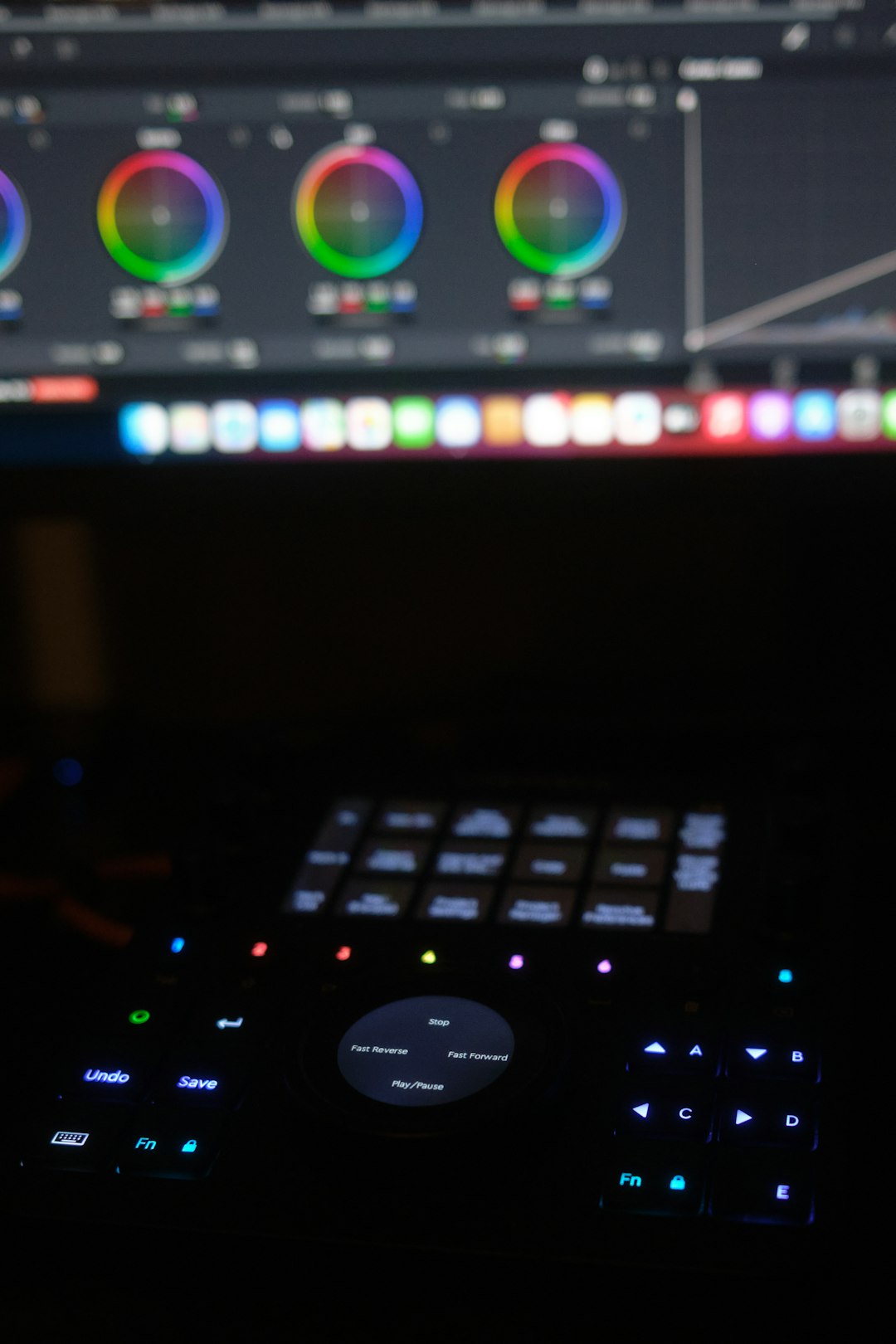
The cleanest way to export above 60 FPS is to set the frame rate correctly before you start building the timeline. In DaVinci Resolve, open the Project Settings by clicking the gear icon in the lower-right corner of the interface. Under Master Settings, find the timeline frame rate options.
Choose the frame rate you want, such as 120 frames per second or 119.88 frames per second. Then save the settings before adding clips to the timeline. This helps prevent Resolve from locking certain frame rate settings after editing has begun.
A typical setup might look like this:
- Timeline resolution: 1920 x 1080, 2560 x 1440, or 3840 x 2160
- Timeline frame rate: 120 FPS or 119.88 FPS
- Playback frame rate: Match the timeline frame rate if your system can handle it
- Video monitoring: Set according to your display or output device
If your computer struggles to play back the timeline smoothly, do not panic. Playback performance while editing is separate from the final export. You can use optimized media, proxies, timeline proxy resolution, or render cache to make editing easier.
Step 3: Create a High Frame Rate Timeline
In newer versions of DaVinci Resolve, you can often create timelines with custom settings. This is especially useful if you work with multiple deliverables. For example, you may want one timeline at 24 FPS for a cinematic version and another at 120 FPS for a gaming archive.
To create a custom timeline, go to the Media Pool, right-click, and choose Create New Timeline. If available, uncheck Use Project Settings, then open the format or settings panel and choose your desired frame rate. Make sure this is done before placing clips into that timeline.
If the high frame rate option is unavailable or greyed out, your project may already be locked to a different frame rate. In that case, the easiest solution is often to create a fresh project with the correct timeline frame rate from the beginning.
What If Your Existing Timeline Is Stuck at 60 FPS?
This is a common problem. You start editing, add music, color correct your clips, build titles, and only then discover the export cannot go above 60 FPS. Resolve may restrict frame rate changes after a timeline has been created because changing the timeline timing can affect edits, keyframes, transitions, audio sync, and effects.
If your timeline is stuck, try these options:
- Create a new high frame rate project: Set the frame rate to 120 FPS before importing or editing.
- Copy your edit carefully: Copy clips from the old timeline and paste them into the new high frame rate timeline, then check timing.
- Export an intermediate file: Render a high-quality master from the old timeline, then bring it into a new project if needed. This will not create true extra motion frames, but it can be useful for finishing.
- Use retiming tools only when appropriate: Optical Flow and Speed Warp can generate smoother motion, but they are not the same as footage originally captured at 120 FPS.
The best fix is prevention: decide your final frame rate before serious editing begins.
Step 4: Export Above 60 FPS on the Deliver Page
Once your timeline is set above 60 FPS, go to the Deliver page. Choose Custom Export for the most control. In the render settings, select your format, codec, resolution, quality, and frame rate.
If everything is set up correctly, the frame rate field should match your high frame rate timeline. For example, if your timeline is 120 FPS, the export settings should allow 120 FPS. If you only see 24, 30, or 60 FPS, return to your timeline and project settings to confirm the timeline was actually created above 60 FPS.
Recommended export combinations include:
- QuickTime with ProRes: Excellent for high-quality masters on macOS and professional workflows.
- QuickTime with DNxHR: Great intermediate format, especially for cross-platform editing.
- MP4 with H.264: Smaller files and broad compatibility, though high frame rate support may vary.
- MP4 or QuickTime with H.265: More efficient compression, useful for 4K 120 FPS exports, but slower to encode.
For quality, avoid extremely low bitrates. High frame rate video contains more frames, so it usually needs more data. A 120 FPS video may require significantly higher bitrate than a 60 FPS video at the same resolution if you want similar visual quality.
Suggested Bitrates for High FPS Exports
There is no perfect bitrate for every project, because it depends on resolution, motion, codec, noise, detail, and compression efficiency. However, these rough guidelines can help:
- 1080p 120 FPS H.264: 30 to 80 Mbps
- 1440p 120 FPS H.264: 60 to 120 Mbps
- 4K 120 FPS H.265: 100 to 250 Mbps or more
- ProRes or DNxHR: Use the appropriate quality level for mastering rather than a tiny delivery file.
If you are uploading online, you may export a high-quality master first, then create a compressed version for upload. This gives you flexibility and protects you from over-compressing your only copy.
Hardware and Codec Limitations
If Resolve refuses to export above 60 FPS or the render fails, the issue may not be the timeline. It may be your codec, graphics card, hardware encoder, or operating system. Some hardware encoders have limits at certain resolutions and frame rates. For example, a system might encode 1080p 120 FPS but struggle with 4K 120 FPS in H.265.
If you run into problems, try these troubleshooting steps:
- Switch from hardware encoding to native/software encoding if available.
- Try QuickTime instead of MP4, or change the codec.
- Lower the resolution temporarily to test whether the frame rate is supported.
- Update your GPU drivers and DaVinci Resolve version.
- Export to an intermediate codec such as DNxHR or ProRes, then compress with another tool if necessary.
Do You Need Optical Flow or Speed Warp?
Optical Flow and Speed Warp are useful when changing clip speed or trying to make slow motion smoother. They analyze motion and generate intermediate frames. However, they are not required simply to export a 120 FPS timeline, and they should not be seen as a substitute for real high frame rate capture.
If you place 60 FPS footage in a 120 FPS timeline and export at 120 FPS, Resolve may duplicate or interpolate frames depending on your settings. The result can be playable, but it will not contain the same natural motion detail as footage recorded at 120 FPS. Use frame interpolation carefully, especially with fast motion, water, smoke, flashing lights, or complex patterns, because artifacts can appear.
Final Checklist for Exporting Above 60 FPS
- Confirm your footage: Make sure the clips were captured above 60 FPS if you want true high frame rate motion.
- Set timeline FPS early: Choose 100, 119.88, or 120 FPS before editing.
- Use a compatible codec: Try H.265, H.264, ProRes, or DNxHR depending on your goal.
- Increase bitrate: More frames usually need more data.
- Check platform limits: Some websites may reduce playback to 60 FPS anyway.
- Test a short export: Render 10 seconds first before committing to a long video.
Exporting above 60 FPS in DaVinci Resolve is not difficult once you understand the workflow. The key is to build the project around the desired frame rate from the beginning, rather than trying to force it at the end. With the right timeline settings, suitable source footage, and a codec that supports high frame rate output, you can create beautifully smooth 100 or 120 FPS videos that preserve the energy and clarity of fast motion.