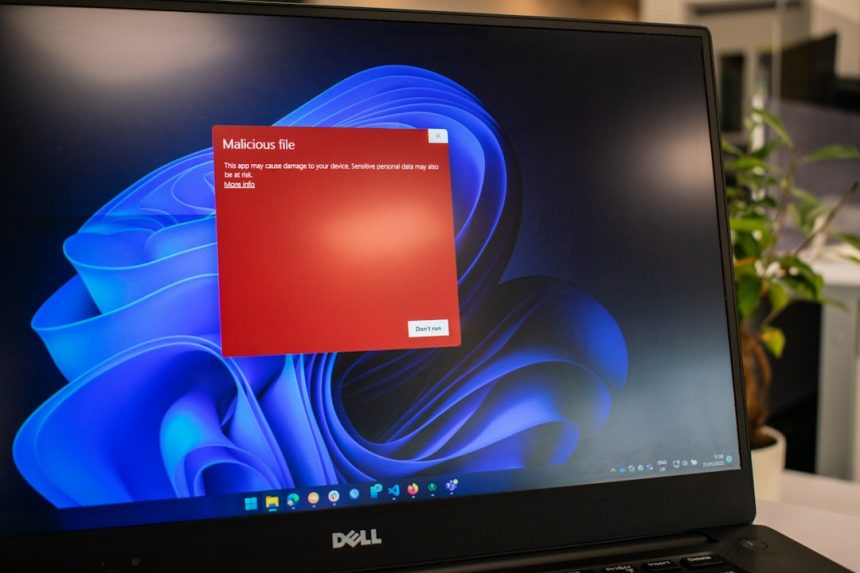
Making changes directly on your live WordPress site is like performing heart surgery while skydiving—dangerous and probably not too smart. One tiny mistake can bring the whole site crashing down. That’s where WP Staging comes in. It’s your safety net, your backstage pass, your magic cloning wand!
TL;DR (Too Long; Didn’t Read)
WP Staging lets you create a safe copy of your WordPress site for testing. It keeps your live site protected while you experiment. You can try new plugins, designs, or code without fear. And best of all—it’s super easy to use!
What is WP Staging?
WP Staging is a plugin for WordPress that helps you clone your site. This clone is called a staging site. You can tinker with it all you like. Your users will never see the changes until you decide they’re ready.
This plugin is great for:
- Testing new themes
- Trying out plugins
- Updating WordPress versions
- Experimenting with content or layout changes
Best part? You don’t need to be a tech wizard to use it.
Why Use a Staging Site Anyway?
Imagine you install a fancy new plugin. Suddenly, your site breaks. Everyone sees a scary error message. Yikes!
Now imagine testing that plugin on a staging site instead. No mess. No stress. No angry emails from visitors.
A staging site gives you peace of mind. It’s like having a failsafe button for your WordPress experiments.
How to Install WP Staging Plugin
Ready to set things up? Here’s a short guide:
- Log into your WordPress dashboard.
- Go to Plugins > Add New.
- Search for WP Staging.
- Click Install Now, then Activate.
That’s it! You’re ready to clone like a pro.
Creating Your First Staging Site
Once the plugin is active, follow these steps:
- In the WordPress sidebar, click WP Staging.
- Click the big Create New Staging Site button.
- Give your clone a name. Something like test or lab.
- Click Start Cloning.
Now sit back, relax, and sip some coffee.

The plugin will copy your site’s files and database. Depending on your site’s size, this might take a few minutes. When it’s done, you’ll see a special link. This is your staging site.
Testing in the Staging Site
Click the staging link. Boom! It looks just like your actual website. But it’s totally separate.
Login with your normal credentials. Try that funky plugin you’ve had your eye on. Redesign your homepage. Play mad scientist with your layouts.
Even if everything goes wrong… your live site is untouched.
What Happens If You Like the Changes?
So you’ve built the perfect changes. Time to go live!
In the free version of WP Staging, there’s no one-click option to push changes back to the main site. You’ll need to manually copy changes.
If that sounds painful, consider the Pro version of WP Staging. It lets you:
- Push staging changes live automatically
- Schedule backups
- Exclude folders or tables while cloning
Totally worth it if you make lots of changes regularly.
Tips for Safe Staging
Here are some quick tips to keep your staging site extra safe:
- Keep it hidden: Use password protection, so Google and visitors can’t find your test site.
- Disable caching: Caching plugins can cause weird issues during testing.
- Back up everything: Even your test site deserves a good bedtime backup.
Common Questions (And Answers!)
Q: Will WP Staging slow down my website?
A: Nope! The staging site is made in a separate folder. It won’t touch your live performance.
Q: Can I delete the staging site later?
A: Yes! Go to WP Staging > Sites List and click Delete on the clone.
Q: How many staging sites can I have?
A: One in the free version, unlimited in the Pro version.
When Should I Use WP Staging
Here are the perfect times to fire up a staging site:
- Before a major plugin or theme update
- When switching to a new WordPress theme
- Before doing custom code changes
- During a site redesign or new feature test
If you’re even thinking: “Should I test this first?” the answer is yes!
Bonus: Things You Can’t Do Without Staging
Think of all the fun stuff you can try safely with a test site:
- Create wild new layouts without going live
- Speed up your workflow with safe plugin tests
- Date your site changes before marrying them
Staging first is like a dress rehearsal before a play. Better to catch mistakes before the lights come on.
Time to Experiment (Safely!)
WordPress is powerful, but it’s not invincible. One bad move can break a page—or the entire site. WP Staging gives you the freedom to move fast without breaking anything.
So go on, experiment away. Build that killer homepage. Test that shiny plugin. Your clone site is waiting!
Final Thoughts
WP Staging is hands-down one of the easiest tools to test WordPress changes without fear. It’s free, it’s safe, and it’s surprisingly fun to use. By using a staging site, you protect your website and your peace of mind.
Remember: just because you can hit “Update” on a live site doesn’t mean you should. Use WP Staging and make smart WordPress moves every time.