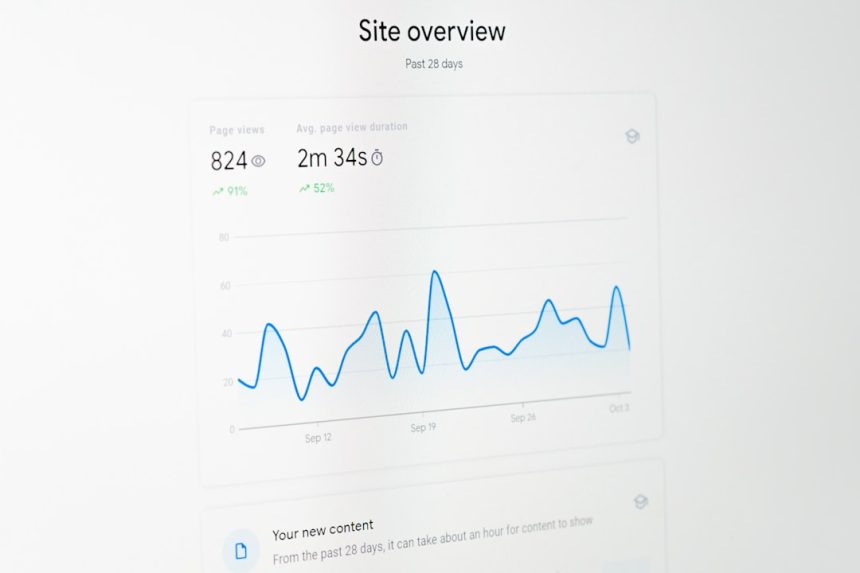
Understanding where your search traffic comes from is one of the most powerful ways to improve your website’s performance. Whether you are tracking SEO efforts, analyzing paid campaigns, or simply trying to understand how users discover your site, knowing where to find search results in Google Analytics is essential. While the platform has evolved—especially with the shift from Universal Analytics to Google Analytics 4 (GA4)—the core goal remains the same: uncover how people search, what they search for, and how those searches translate into engagement and conversions.
TLDR: To find search-related data in Google Analytics, navigate to the Reports section and explore Acquisition reports, especially Traffic acquisition for organic and paid search data. For detailed keyword insights, link Google Analytics with Google Search Console. You can also track internal site search behavior through enhanced measurement or custom event tracking. Together, these tools show how users find and interact with your site through search.
Understanding the Two Types of Search Data
Before diving into the interface, it’s important to clarify that “search results” can mean two different things in Google Analytics:
- External search traffic – Visitors who found your website via search engines like Google or Bing.
- Internal site search – Searches users perform within your own website.
Each type of search data lives in a different section of Google Analytics, and each provides unique insights.
Where to Find Organic and Paid Search Data in GA4
If you want to see how users arrive at your site from Google search results, start in the Reports section.
Step-by-step navigation:
- Log in to Google Analytics.
- Select your GA4 property.
- Click Reports in the left-hand menu.
- Go to Acquisition.
- Select Traffic acquisition.

In the Traffic acquisition report, look at the default channel grouping. Here, you’ll typically see:
- Organic Search
- Paid Search
- Direct
- Referral
- Social
Clicking on Organic Search allows you to drill deeper into:
- Sessions
- Engaged sessions
- Engagement rate
- Conversions
- Total revenue (if e-commerce tracking is enabled)
This report answers important questions like:
- How many users came from search engines?
- How engaged are these visitors?
- Are they converting?
However, one thing you may notice is missing—specific keyword data. That’s where Google Search Console comes in.
Connecting Google Search Console for Keyword Insights
Due to privacy reasons, GA4 doesn’t show detailed organic keyword data by default. To see the exact queries users typed into Google, you need to link Google Analytics with Google Search Console.
How to Link Search Console
- Go to Admin in GA4.
- Under Product Links, select Search Console Links.
- Click Link and follow the setup instructions.
Once connected, you’ll find Search Console reports under:
Reports → Acquisition → Search Console

Here you can explore:
- Queries – Exact search terms used.
- Landing Pages – Pages users first visit from search.
- Clicks – How many users clicked your result.
- Impressions – How often your site appeared in search results.
- Average Position – Your average ranking for a query.
This data is extremely valuable for:
- SEO strategy development
- Identifying high-impression, low-click keywords
- Discovering new content opportunities
- Improving underperforming pages
By combining Search Console and GA4 metrics, you gain a deeper understanding of not just how users find you, but what they do afterward.
How to Track Internal Site Search
While external search data shows how users arrive at your site, internal search reveals what they are looking for once they are already there.
This is incredibly valuable because:
- It exposes content gaps.
- It uncovers user intent.
- It highlights navigation issues.
- It identifies product demand trends.
Setting Up Internal Search Tracking in GA4
Google Analytics 4 uses Enhanced Measurement to track site search automatically in many cases.
To check:
- Go to Admin.
- Select Data Streams.
- Choose your website data stream.
- Ensure Enhanced Measurement is enabled.
- Confirm that Site search is toggled on.
GA4 typically detects common query parameters like:
- q
- s
- search
- query
Once data is collected, go to:
Reports → Engagement → Events
Look for the event called view_search_results.

Clicking this event lets you analyze:
- Search term parameters
- User engagement after searching
- Conversion rates following a search
You can also build a custom exploration report for deeper analysis.
Using Explorations for Advanced Search Analysis
If you want more flexibility, GA4’s Explore section allows you to create custom reports tailored to search data.
For example, you can:
- Create a Free Form Exploration
- Add Session default channel group as a dimension
- Filter for Organic Search
- Add metrics such as conversions or revenue
Or for internal search:
- Add the search_term dimension
- Compare behavior of users who searched vs. those who didn’t
This level of customization helps answer advanced questions like:
- Do users who perform site searches convert at a higher rate?
- Which search terms lead to the highest revenue?
- What search queries cause users to leave?
Analyzing Paid Search Results
If you run Google Ads campaigns, your search data becomes even richer when accounts are properly linked.
To Link Google Ads:
- Go to Admin
- Under Product Links, choose Google Ads Links
- Complete the linking process
After linking, navigate to:
Reports → Acquisition → Traffic acquisition
Filter by Paid Search.
You can evaluate:
- Cost per conversion
- Engagement rates
- Revenue from paid campaigns
- Campaign-level performance
This allows you to compare:
- Organic vs. Paid Search ROI
- High-performing keywords
- Landing page effectiveness
When analyzing paid and organic search together, patterns often emerge that inform smarter bidding and content strategies.
Common Challenges When Finding Search Data
Many users struggle with search reports because:
- Keyword data appears missing.
- Reports show “(not provided).”
- Internal search isn’t tracking correctly.
- Channel groupings are misunderstood.
To troubleshoot:
- Ensure Search Console is properly linked.
- Verify Enhanced Measurement settings.
- Check that query parameters are correct.
- Allow 24–48 hours for new data to populate.
Understanding where search data lives within GA4 removes much of the confusion.
Why Search Reporting Matters
Search data isn’t just numbers on a dashboard—it tells the story of user intent.
When someone finds your site through search, they are usually:
- Looking for answers
- Researching solutions
- Comparing products
- Ready to make a decision
Search traffic often has higher intent than other channels, which makes it especially valuable. By mastering where to find search results in Google Analytics, you unlock strategic insights that can:
- Strengthen SEO performance
- Improve content planning
- Refine advertising strategy
- Enhance user experience
- Increase revenue
Bringing It All Together
Finding search results in Google Analytics requires understanding both the structure of GA4 and the complementary role of Google Search Console. Organic and paid search data live under the Acquisition reports. Keyword-level insights require Search Console integration. Internal search behavior appears in Engagement events, specifically view_search_results.
When you combine these elements, you gain a complete view of the search journey—from the moment a user types a query into Google to the moment they convert on your website.
Mastering these reports transforms Google Analytics from a data collection tool into a strategic decision-making platform. And in today’s search-driven digital landscape, that knowledge can make all the difference.