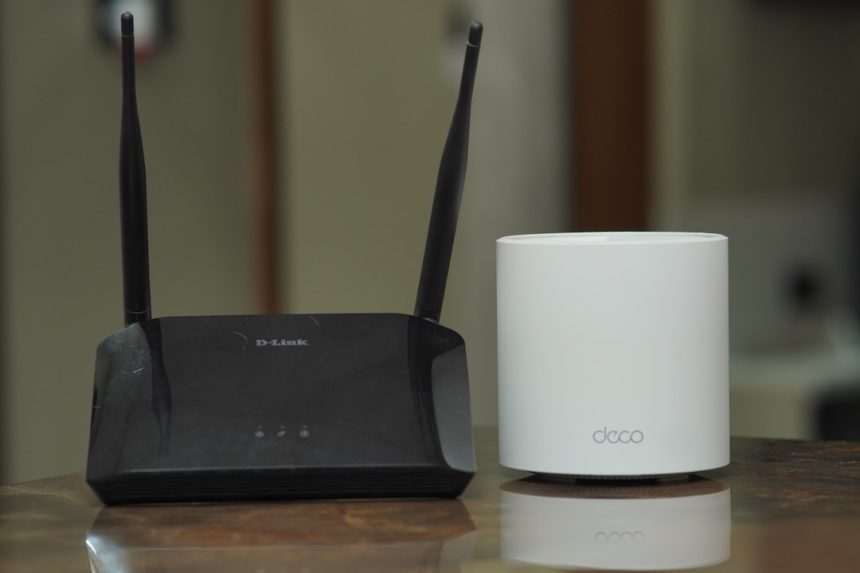
Most of us think of home internet as a single invisible service: you pay a provider, plug in a box, connect to Wi Fi, and somehow the entire digital world appears on your laptop, phone, TV, and smart fridge. But behind that simple experience is a surprisingly elegant chain of devices, signals, addresses, and rules. The two most misunderstood pieces in that chain are the modem and the router. They often sit next to each other, sometimes inside the same plastic box, and both have blinking lights that seem to speak in code. Yet they do very different jobs.
TLDR: A modem connects your home to your internet service provider, translating the provider’s signal into a form your devices can use. A router creates and manages your home network, sending internet traffic to the correct phone, laptop, console, or smart device. Many modern internet boxes combine both functions, which is why people often confuse them. If your internet is down, knowing the difference helps you troubleshoot faster and buy the right equipment.
The Short Version: Modem Brings Internet In, Router Shares It Around
Think of your home internet like a delivery system. The modem is the loading dock where packages from the outside world arrive. The router is the local delivery manager that figures out which room, person, or device gets each package.
Without a modem, your home has no usable connection to your internet service provider, often called an ISP. Without a router, that internet connection would usually serve only one device, and you would not have a convenient home Wi Fi network. Together, they form the basic foundation of modern home connectivity.
What Is a Modem?
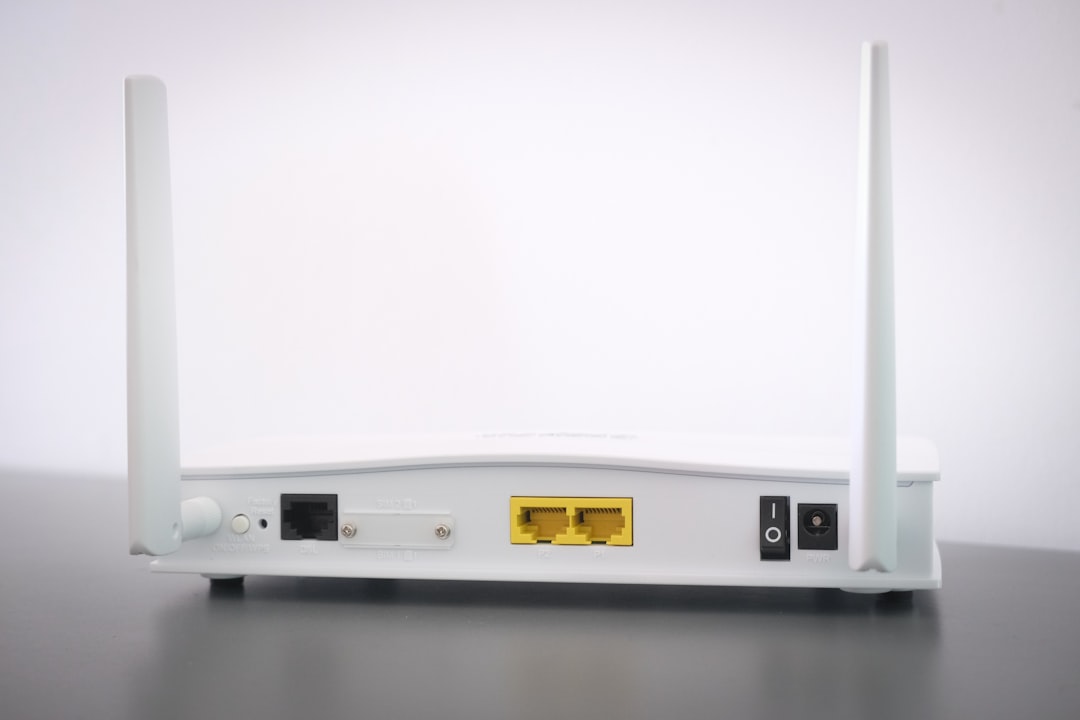
A modem is the device that connects your home to the wider internet through your ISP. The word “modem” originally comes from modulator demodulator, which describes its classic job: converting signals from one format into another.
Your ISP may deliver internet through different types of infrastructure, such as:
- Cable: Internet arrives through the same coaxial cable system used for cable TV.
- DSL: Internet travels over telephone lines.
- Fiber: Internet is delivered using light signals through fiber optic cables.
- Fixed wireless: Internet comes from a nearby tower to a receiver at your home.
- Satellite: Internet travels between your dish and satellites orbiting Earth.
Each connection type uses different signals. Your laptop or phone cannot understand those raw provider signals directly. The modem translates them into standard digital networking data, most commonly Ethernet, which can then be sent to a router or a single connected device.
In simpler terms: the modem speaks your ISP’s language on one side and your home network’s language on the other.
What Is a Router?
A router is the device that manages traffic inside your home network. Its name gives away its purpose: it routes data. When your phone opens a video, your laptop downloads a file, and your smart speaker checks the weather, the router keeps track of all those requests and makes sure the right replies go back to the right devices.
A router usually does several important things:
- Creates a local network: It lets devices in your home communicate with one another.
- Provides Wi Fi: Most home routers include wireless antennas so devices can connect without cables.
- Assigns local addresses: It gives each device a private IP address, such as 192.168.1.24.
- Shares one internet connection: It allows many devices to use the same modem connection.
- Adds security: It uses firewalls, encryption, and network rules to help protect your devices.
If the modem is your gateway to the outside world, the router is the traffic controller inside your home. It decides where data should go and helps prevent digital chaos.
Why People Confuse Modems and Routers
The confusion is understandable because many internet providers now supply a single device that is both a modem and a router. This is often called a gateway, combo unit, or modem router combo. It connects to your ISP and also broadcasts Wi Fi.
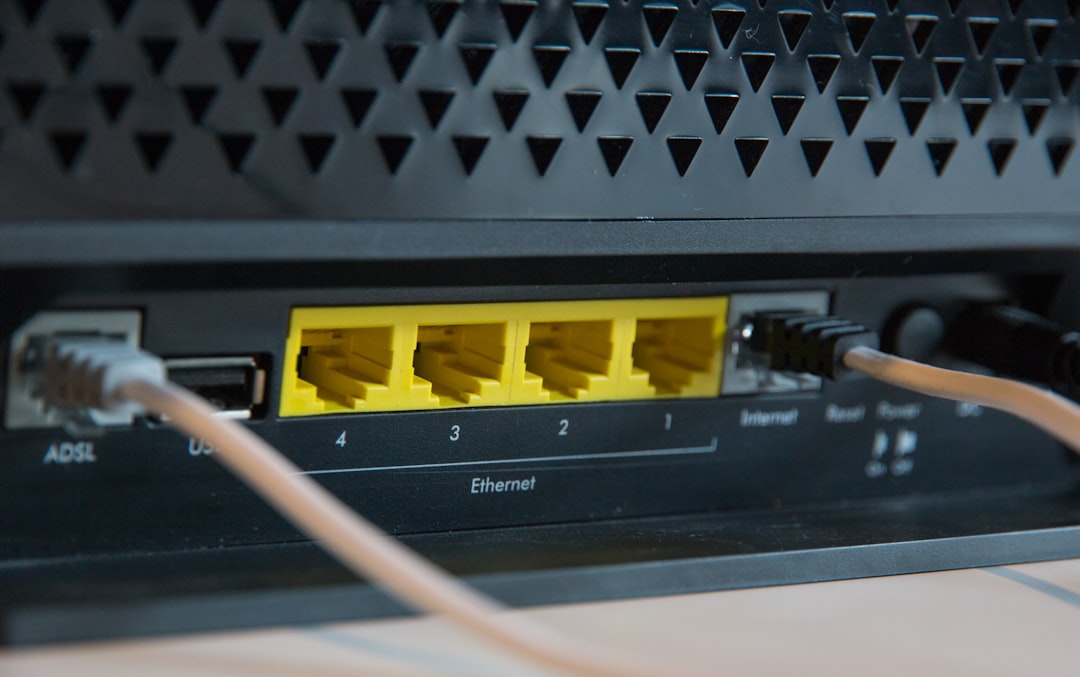
From the outside, a combo unit looks like “the internet box.” It may have a coaxial or fiber connection, several Ethernet ports, and Wi Fi antennas hidden inside. Because everything is in one case, people naturally call it a modem, a router, or simply “the Wi Fi.”
But functionally, the two jobs remain separate:
- The modem part connects to your internet provider.
- The router part distributes that connection to your devices.
This distinction matters when something breaks, when you want faster Wi Fi, or when you are deciding whether to rent equipment from your ISP or buy your own.
How Home Internet Actually Works, Step by Step
When you open a website, stream a movie, or join a video call, your data takes a journey. It may feel instant, but several steps happen in fractions of a second.
- Your device makes a request. For example, your phone asks to load a webpage.
- The request goes to your router. If you are on Wi Fi, the signal travels wirelessly. If you are plugged in, it travels through an Ethernet cable.
- The router identifies the device. It notes that the request came from your phone, not your laptop or TV.
- The router sends the request to the modem. The modem is the exit point from your home network.
- The modem communicates with your ISP. It converts and sends the request through cable, fiber, DSL, or another provider connection.
- The request travels across the internet. It may pass through many servers and networks before reaching the website or service.
- The response comes back. The data returns to your modem, then your router, then the correct device.
All of this happens constantly. A single video stream, for example, is not one big file sent all at once. It is a steady flow of small packets, each routed and reassembled so the video plays smoothly.
Understanding IP Addresses: The Home Address System
To understand routers, it helps to understand IP addresses. An IP address is like a mailing address for devices on a network.
Your ISP gives your home a public IP address. This is the address the wider internet uses to send data back to you. But inside your home, your router gives each device a private IP address. Your phone, printer, laptop, and gaming console each get their own internal address.
Here is the clever part: dozens of devices in your home can share one public IP address. The router keeps a table of outgoing requests and remembers which device asked for what. When the reply arrives, the router forwards it to the correct device. This process is called Network Address Translation, or NAT.
NAT is one reason home routers are so useful. It conserves public IP addresses and adds a layer of separation between your devices and the open internet.
What About Wi Fi?
Many people use the word “Wi Fi” to mean internet, but they are not the same thing. Wi Fi is just a wireless connection to your local router. Internet is the connection from your home to the outside world.
This is why you can sometimes be “connected to Wi Fi” but still have no internet. Your phone may successfully connect to the router, but if the modem is offline or your ISP has an outage, there is no path beyond your home.
Imagine being inside a house with perfect hallways but a locked front door. You can move around inside, but you cannot leave. That is what local Wi Fi without internet is like.
Separate Modem and Router vs Combo Unit
Should you use a single combo unit or separate modem and router? It depends on your needs.
Benefits of a Combo Unit
- Simplicity: One device, one power cable, fewer wires.
- Easy setup: Your ISP can often configure it automatically.
- Less clutter: Good for small apartments or basic internet needs.
Benefits of Separate Devices
- Better performance: Dedicated routers often have stronger Wi Fi and more advanced features.
- Easier upgrades: You can upgrade your router without replacing your modem.
- More control: Separate routers tend to offer better settings for security, parental controls, guest networks, and gaming.
- Potential savings: Buying your own equipment may avoid monthly rental fees, depending on your ISP.
For casual users in a small home, a combo unit may be perfectly fine. For larger homes, heavy streaming, online gaming, remote work, or many smart devices, separate equipment or a mesh Wi Fi system can produce a better experience.
Where Mesh Wi Fi Fits In
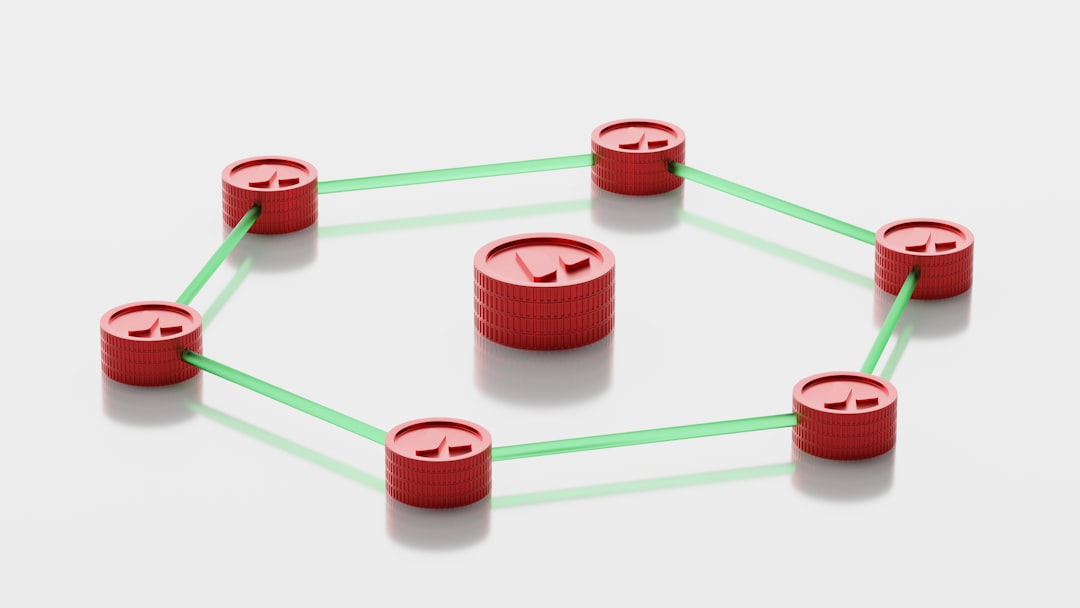
A mesh Wi Fi system is a type of router setup designed to spread wireless coverage throughout a home. Instead of relying on one router in one corner, mesh systems use multiple nodes placed in different rooms. They work together under one network name, helping devices stay connected as you move around.
Mesh does not replace the modem. You still need a modem or modem function to connect to your ISP. In many homes, the setup looks like this:
- ISP line enters the home.
- Modem connects to the ISP line.
- Main mesh router connects to the modem.
- Mesh nodes extend Wi Fi coverage around the home.
Common Internet Problems and What They Usually Mean
Knowing the difference between modem and router can make troubleshooting less frustrating. Here are common symptoms and likely causes:
- All devices have no internet: The modem, ISP service, or main router may be the issue.
- Wi Fi signal is weak in one room: The router placement or Wi Fi coverage is likely the problem, not the modem.
- One device cannot connect: The problem may be that device’s Wi Fi settings, password, or network adapter.
- Ethernet works but Wi Fi does not: The internet connection is probably fine, but the router’s wireless function may be failing or misconfigured.
- Wi Fi works but websites do not load: The router may be connected locally, but the modem or ISP connection may be down.
A simple restart often helps. Power off the modem and router, wait about 30 seconds, power on the modem first, wait until it fully connects, then power on the router. This order matters because the router needs the modem to be online before it can properly share the internet connection.
Security: Why Your Router Matters More Than You Think
Your router is not just a convenience device; it is also a security checkpoint. It sits between your personal devices and the internet. A poorly secured router can expose your network to unwanted access, slowdowns, or privacy risks.
For a safer home network, consider these practices:
- Change the default admin password on your router.
- Use WPA2 or WPA3 encryption for Wi Fi.
- Create a strong Wi Fi password that is not easy to guess.
- Update router firmware when updates are available.
- Use a guest network for visitors and smart home devices.
- Disable features you do not use, such as remote administration.
These steps are simple, but they can dramatically improve your home network’s reliability and safety.
So, Which Device Should You Upgrade?
If your internet speed test near the modem is much slower than the plan you pay for, your modem or ISP connection may be the bottleneck. If speeds are good near the router but terrible in bedrooms or upstairs, your router or Wi Fi coverage is the likely problem.
Upgrade your modem when it does not support your ISP’s speed tier, uses outdated standards, or frequently drops the provider connection. Upgrade your router when Wi Fi is weak, your household has many connected devices, you want better security features, or you need modern standards like Wi Fi 6 or Wi Fi 6E.
The Bottom Line
A modem and a router are partners, but they are not the same thing. The modem is your bridge to your internet provider. The router is your home network manager, sharing that connection through Ethernet and Wi Fi while keeping track of every device.
Once you understand that division of labor, home internet becomes far less mysterious. Blinking lights and tangled cables start to make sense. More importantly, you can troubleshoot problems intelligently, choose better equipment, and build a home network that actually fits the way you live, work, stream, play, and connect.