So you kicked back on the couch, popcorn in hand, Roku remote ready… and BAM. The app won’t load. Nada. Just a spinning wheel or worse—an error message. If your Roku apps aren’t loading, don’t panic. We’ve got you covered with simple, clear steps to bring your binge-watching night back to life.
TL;DR: If your Roku apps aren’t loading, start by checking your internet connection and restarting your Roku device. Make sure your software is updated. If that doesn’t work, you may need to uninstall and reinstall the problematic app. Keep reading for easy, step-by-step ways to fix each issue!
1. Check Your Internet Connection
First things first. Most of the time, the issue isn’t Roku—it’s your Wi-Fi. A weak or unstable connection is often the sneaky villain here.
- On your Roku remote, hit the Home button.
- Scroll to Settings > Network.
- Choose Check Connection.
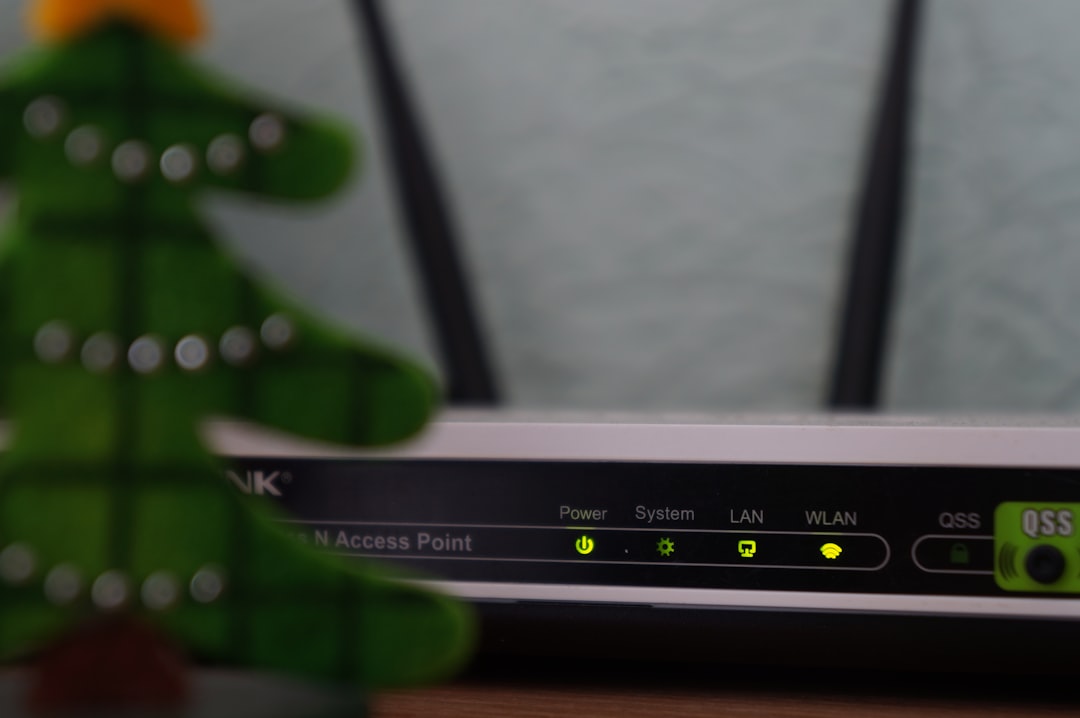
This test tells you if you’re connected and how strong your signal is. If it says “not connected,” you’ll need to restart your router. Unplug it, count to 20, then plug it back in. Simple!
If you’re connected but the signal is weak, try moving your Roku closer to your modem or router. Distance matters.
2. Restart Your Roku Device
You’d be surprised how often this works. A simple restart can fix all sorts of tiny glitches.
To restart:
- Press Home on your remote.
- Go to Settings > System.
- Select System Restart > Restart.
This takes less than a minute. After restarting, try opening the app again. Problem still there? Keep reading!
3. Update Your Roku Software
If your Roku is running outdated software, that could totally mess with your apps. Roku usually updates automatically, but sometimes it needs a little nudge.
Update it manually like this:
- Go to Settings > System.
- Select System Update > Check Now.
If an update is available, your Roku will download and install it. Once that’s done, try your apps again.
4. It’s Not You—It’s the App
Sometimes it’s not your internet or your Roku—it’s the app itself. Apps like Netflix, YouTube, or Hulu may have their own servers down.
Check on your phone or computer if the app works there. If the app is down everywhere, grab a snack and wait. There’s nothing you can do until they fix it.
You can also visit websites like DownDetector to see if others are having the same issue.
5. Uninstall and Reinstall the App
If one app just refuses to open—say Netflix won’t load but YouTube works fine—then the app might need a fresh start.
Uninstalling is easy:
- Go to the app on the Home screen.
- Press the * (star) button on your remote.
- Select Remove Channel.
Now reboot your Roku:
- Go to Settings > System > System Restart.
Then reinstall the app:
- From the Home screen, go to Streaming Channels.
- Search for the app and install it again.
6. Clear Roku’s Cache
Yep, your Roku even has a cache. And when it gets messy, things stop working right. Clearing it is simple, though it sounds like a secret cheat code.
Here’s how to do it:
- On your Roku remote, press the following buttons in this exact order:
- Home button 5 times
- Up once
- Rewind twice
- Fast Forward twice
Your Roku will freeze for a bit, then restart. Don’t worry—that means it worked!
7. Factory Reset (Last Resort!)
If nothing, and we mean nothing, is working—then it might be time for a factory reset. Warning: this will delete all your apps and settings 😬. Only do this as a final option.
To reset your Roku:
- Go to Settings > System > Advanced System Settings.
- Click on Factory Reset.
- Follow the on-screen instructions.
Once it restarts, you’ll have to set it up like it’s brand new. But hey, everything should work properly now!
8. Still Not Working? Contact Roku Support
If your apps still won’t load, it might be time to let the pros take over. Roku has a support team you can contact directly.
Visit Roku Support and follow the options for troubleshooting or live help.
Bonus Tips to Keep Your Roku Happy
- Always keep your Roku updated.
- Uninstall apps you don’t use to free up space.
- Use a stronger Wi-Fi signal or a wired connection if possible.
- Reboot your Roku once a week. Seriously, it helps!
Summary
Don’t let a frozen app ruin your chill night. Most Roku app issues are small and easy to fix. Start with a check on your internet, then restart your Roku. If needed, update software, clear the cache, or reinstall the app. And if all else fails—factory reset or talk to Roku support. Happy streaming!