
A lagging or freezing mouse can make a fast computer feel broken. The pointer may stutter across the screen, clicks may register late, or the mouse may stop responding for several seconds before suddenly catching up. In many cases, the problem is not the mouse alone; it may be caused by wireless interference, outdated or corrupted drivers, low battery power, USB port issues, display settings, or hardware wear.
TLDR: Mouse lag or freezing is usually caused by wireless signal problems, driver conflicts, low battery power, bad USB ports, or failing hardware. The fastest fixes are to replace or recharge the batteries, move the receiver closer, update drivers, try another USB port, and remove nearby interference. If the issue continues across multiple computers, the mouse itself may be defective and should be repaired or replaced.
Common Signs of Mouse Lagging or Freezing
Mouse lag can appear in several ways. The pointer may move in short jumps instead of smooth motion, or it may delay after the mouse is moved. Sometimes clicks do not work until several seconds later. In gaming, design work, spreadsheets, and general browsing, this can make normal tasks frustrating and inefficient.
The issue may happen constantly or only at certain times. For example, a wireless mouse may lag when an external hard drive is connected nearby, while a Bluetooth mouse may freeze when many wireless devices are active. A wired mouse may stutter because of a damaged cable, poor USB port, or driver conflict.
- Pointer stuttering: The cursor moves unevenly or skips across the screen.
- Delayed clicks: Left or right clicks register late.
- Random disconnection: The mouse stops working, then reconnects.
- Freezing during high load: The issue appears while gaming, streaming, or using heavy software.
- Only one device affected: The mouse lags on one computer but works normally elsewhere.
Check the Basics First
Before deeper troubleshooting begins, the simplest causes should be checked. A wireless mouse with weak batteries can behave unpredictably. Even if the device still turns on, it may not have enough power to maintain a stable signal. Replacing disposable batteries or fully charging a rechargeable mouse is often the quickest solution.
The surface under the mouse also matters. Optical and laser sensors may struggle on glass, glossy desks, reflective surfaces, patterned fabric, or uneven material. A plain mouse pad can improve tracking immediately. If dirt, dust, or hair blocks the sensor, the cursor may jump or freeze. Cleaning the underside of the mouse with a dry microfiber cloth can help restore normal movement.

Fix Wireless Interference
Wireless interference is one of the most common reasons for mouse lag, especially with 2.4 GHz wireless and Bluetooth devices. Many household and office devices use similar frequency ranges, including routers, keyboards, headphones, speakers, phones, smart home devices, and USB 3.0 equipment. When too many signals compete in the same space, a wireless mouse may lose connection quality.
A small USB receiver plugged directly into the back of a desktop tower may also have trouble maintaining a clear signal. Metal cases, desks, monitors, and nearby cables can block or weaken the connection. For best performance, the receiver should be placed closer to the mouse, preferably with a USB extension cable or a front-facing USB port.
Ways to Reduce Wireless Interference
- Move the receiver closer: A USB extension cable can place the receiver within clear range of the mouse.
- Keep distance from routers: Wi Fi routers and Bluetooth hubs should not sit directly beside the mouse receiver.
- Avoid crowded USB areas: External drives and USB 3.0 devices can create signal noise near wireless receivers.
- Remove obstacles: Metal surfaces, desktop cases, and thick furniture can weaken wireless performance.
- Turn off unused Bluetooth devices: Fewer active wireless connections may reduce conflicts.
If a Bluetooth mouse is used, removing and re-pairing it can also help. The computer may have stored an unstable connection profile. Reconnecting the mouse creates a fresh pairing and may clear repeated freezes.
Update or Reinstall Mouse Drivers
Drivers allow the operating system to communicate with the mouse. If a driver is outdated, corrupted, or conflicting with another input device, the pointer may lag or freeze. This can happen after system updates, new software installation, or switching between multiple mice and keyboards.
For many standard mice, the operating system installs generic drivers automatically. However, gaming mice and advanced productivity mice often use manufacturer software for custom buttons, DPI settings, lighting, macros, and polling rates. If that software becomes outdated or misconfigured, mouse behavior may become unstable.
Recommended Driver Steps
- Restart the computer: A restart can clear temporary driver glitches.
- Check the device manager: The mouse driver can be updated or removed so the system reinstalls it.
- Install manufacturer software: Official software may provide firmware updates and performance settings.
- Remove duplicate devices: Old mouse entries may cause conflicts in some systems.
- Update the operating system: System updates often include USB, Bluetooth, and input device fixes.
When uninstalling a mouse driver, the system usually reinstalls it after a restart. If the mouse stops responding during troubleshooting, a keyboard or touchpad may be needed temporarily. On laptops, the built-in touchpad can help complete the process.
Adjust Mouse Settings
Incorrect settings can feel like lag even when the hardware is working properly. Pointer speed that is too low, acceleration that feels inconsistent, or a very high DPI setting may cause movement that seems delayed or unstable. Gaming mice may also allow polling rate adjustments. A very high polling rate can sometimes cause problems on older systems or overloaded USB controllers.
The user can test different pointer speeds, DPI levels, and polling rates to find a stable setup. A moderate DPI setting often gives smoother control for everyday use. In games, disabling excessive acceleration and matching in-game sensitivity with the mouse software can reduce odd movement.
Enhance pointer precision may help some users but bother others. It changes cursor movement based on speed, which can feel like inconsistency. Testing with the setting on and off can show whether it contributes to the problem.
Inspect USB Ports and Connections
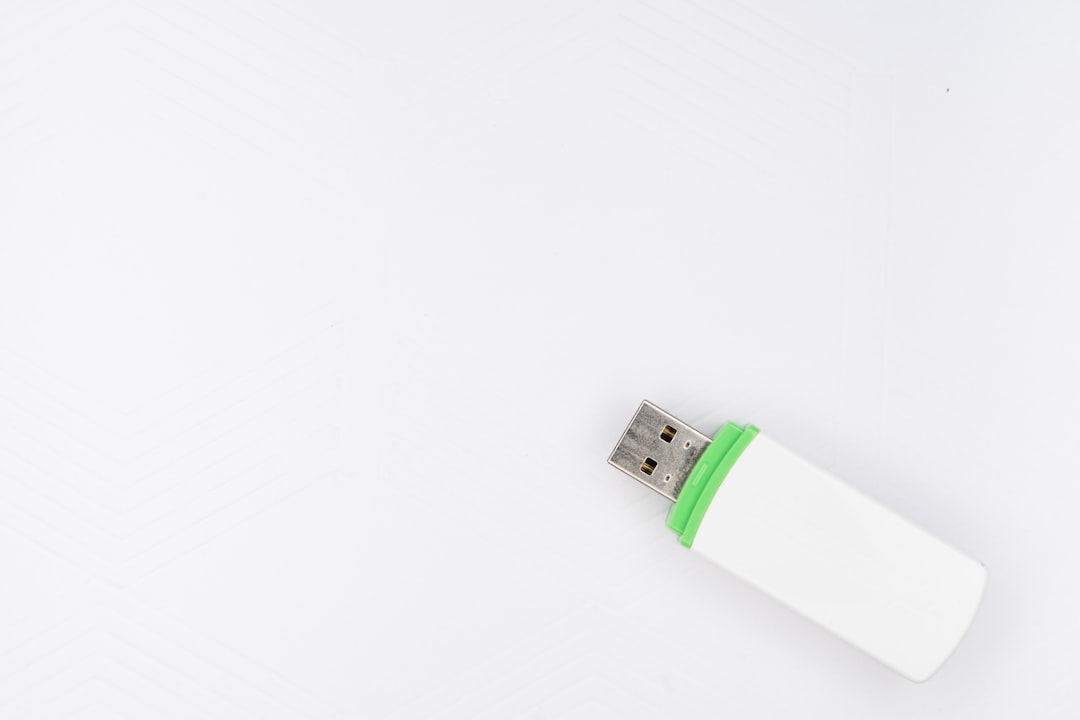
USB ports can cause mouse freezing when they are loose, damaged, underpowered, or overloaded. A receiver connected through a cheap USB hub may not get stable power or bandwidth. A wired mouse connected to a worn port may disconnect briefly whenever the cable moves.
Testing another USB port is a simple but important step. If the mouse works better in a different port, the original port may be faulty or crowded with other devices. Desktop computers often perform better when input devices are plugged directly into the motherboard ports rather than into a monitor, keyboard pass-through, or unpowered hub.
USB Troubleshooting Checklist
- Try another port: Switching ports can identify a weak or damaged connection.
- Avoid unpowered hubs: Direct computer ports are usually more reliable.
- Separate high speed devices: External drives should not crowd the wireless receiver.
- Check cable movement: A wired mouse that disconnects when moved may have a damaged cable.
- Disable USB power saving: Some systems turn off USB devices to save energy, causing freezes.
Look for Battery and Power Management Problems
Power saving features can make a mouse appear to freeze. Laptops and some desktops may reduce power to USB ports or Bluetooth adapters when the system is idle or running on battery. This can cause a short delay when the mouse wakes up. In more severe cases, the device disconnects repeatedly.
Disabling aggressive power saving for USB root hubs, Bluetooth adapters, or the mouse itself can improve reliability. Wireless mice with sleep modes may also pause briefly after inactivity. This is normal to some extent, but long wake delays may indicate weak batteries, firmware issues, or poor connection quality.
Check System Performance
Sometimes the mouse is not the real problem. If the computer is overloaded, the cursor may lag because the system cannot process input quickly. High CPU usage, low memory, failing storage, background updates, malware scans, or graphics driver problems can all make mouse movement feel slow.
Task management tools can show whether CPU, memory, disk, or GPU usage is unusually high when the mouse freezes. If lag occurs only while a specific program is open, that software may be responsible. Games, video editing tools, virtual machines, browser tabs, and recording software can all affect responsiveness on weaker systems.
Updating graphics drivers may also help. Display driver crashes or rendering delays can make the pointer stutter, especially on high refresh rate monitors or multi-monitor setups.
Test for Hardware Failure
If software and interference fixes do not help, the mouse hardware may be failing. Switches wear out, scroll wheels collect debris, sensors degrade, and internal batteries lose capacity. A wireless receiver can also fail, especially if it has been bent or exposed to heat.
The best test is to use the mouse on another computer. If the same lag, freezing, or disconnection occurs, the mouse or receiver is likely at fault. A second mouse can also be tested on the original computer. If the second mouse works normally, the first device is the problem.
For expensive gaming or productivity mice, firmware updates may be available. If the device is still under warranty, replacement may be better than repair. For low-cost mice, replacement is often the most practical option.
When the Problem Happens Only in Games
Mouse lag during games may come from different causes than desktop lag. Low frame rates, high input latency, V Sync, background overlays, wireless interference, or overloaded USB polling can all contribute. A mouse may feel fine on the desktop but delayed inside a game because the graphics system is struggling.
Reducing graphics settings, disabling unnecessary overlays, lowering polling rate, and checking in-game mouse smoothing options can help. Some games include raw input settings, which allow the game to read mouse movement more directly. Enabling raw input may improve precision and reduce delay.
Preventing Mouse Lag in the Future
Preventive maintenance can keep a mouse working smoothly. The receiver should stay close to the mouse, batteries should be replaced before they become weak, and drivers should be updated periodically. The mouse sensor and desk surface should remain clean, especially in dusty environments.
For critical work or competitive gaming, a wired mouse may provide the most stable connection. However, modern wireless mice can perform very well when the receiver is properly placed and interference is controlled.
FAQ
Why does a wireless mouse keep freezing?
A wireless mouse may freeze because of weak batteries, wireless interference, distance from the receiver, USB port problems, Bluetooth conflicts, or outdated drivers. Moving the receiver closer and replacing the batteries are the most common first fixes.
Can Wi Fi interfere with a wireless mouse?
Yes. Many wireless mice use the 2.4 GHz band, which is also used by many Wi Fi networks and other wireless devices. Keeping the mouse receiver away from routers and crowded electronics can improve performance.
Why does the mouse lag even with new batteries?
If fresh batteries do not help, the cause may be interference, a bad USB port, driver problems, power management settings, a dirty sensor, or a failing receiver. Testing the mouse on another computer can help identify whether the mouse is defective.
How can someone tell if the mouse or computer is the problem?
The mouse should be tested on another computer, and a different mouse should be tested on the original computer. If the same mouse lags everywhere, the mouse is likely faulty. If multiple mice lag only on one computer, the issue is probably system related.
Does a mouse pad help with lag?
A mouse pad can help when the sensor struggles with the desk surface. Glossy, glass, reflective, or uneven surfaces can cause poor tracking. A plain, clean mouse pad often improves accuracy and smoothness.
Should a lagging mouse be replaced?
Replacement should be considered if the mouse freezes on multiple computers, the cable or receiver is damaged, the battery no longer holds charge, or buttons and sensors fail. If the issue is caused by settings, drivers, or interference, replacement may not be necessary.