So you just powered up your Roku, ready to binge-watch your favorite show, but there it is — the Howdy app. You’re thinking, “What is this, and why is it on my Roku?” Don’t worry. You’re not alone, and getting rid of it is easier than you think. Let’s walk through it — simple, quick, and maybe even a little fun.
TLDR (Too Long, Didn’t Read)
The Howdy app might show up on your Roku, but you can delete it in just a few steps. It’s not cause for alarm. Most likely, it was added by accident or bundled through a service. Follow our simple guide below to remove it and keep your Roku clean.
What Is the Howdy App Anyway?
The Howdy app isn’t harmful, but it can be annoying. It’s a third-party channel that may appear after setting up your Roku or installing a bundle of apps. Sometimes it comes with Roku devices when you link them with certain promotions or settings.
It’s not malware, but you didn’t ask for it. So, let’s show it the door.
Step-by-Step: How to Remove the Howdy App
1. Turn on your Roku and go to the Home screen
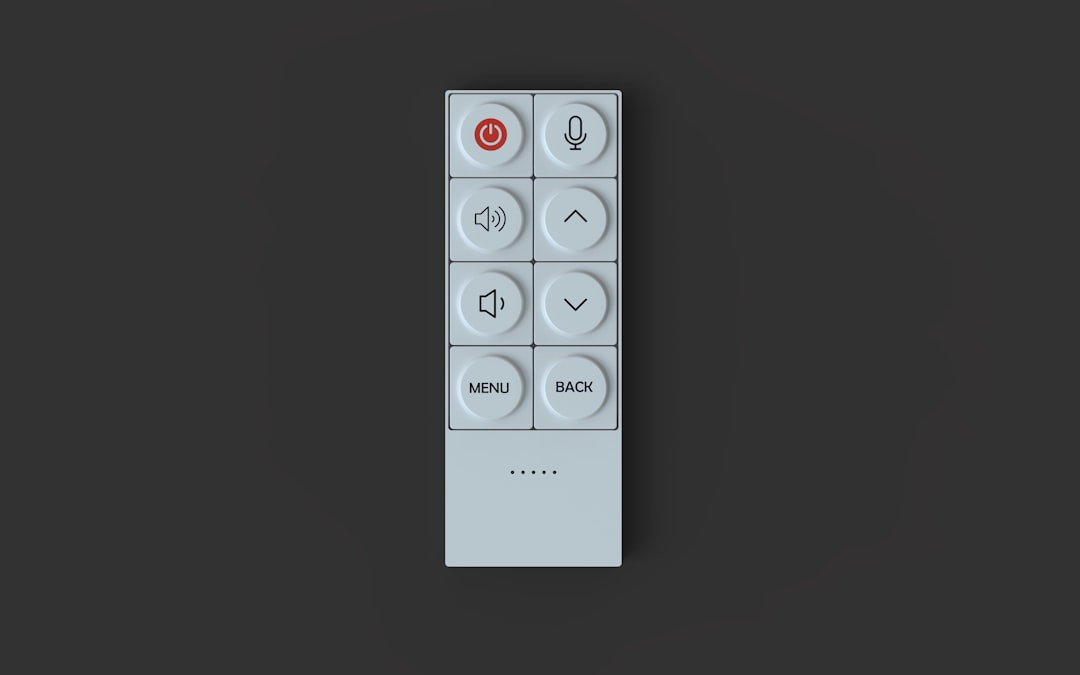
It all begins here. Grab your remote and press the Home button (it’s the one with a little house on it).
- Navigate through your channel list using the directional pad.
- Find the Howdy app — it’ll usually be easy to spot.
2. Open the Options Menu
Once you’ve highlighted the Howdy app, press the * (Star) button on your Roku remote. This pops up a menu full of options.
- Look for one called Remove channel.
- Select it.
- You may be asked to confirm, so go ahead and do that.
And just like that, the Howdy app disappears
3. Restart Your Roku (Optional but Recommended)
While not absolutely necessary, restarting helps make sure everything is clean and tidy.
- Go to Settings from the Home screen.
- Select System > System restart.
- Choose Restart.
Give it a few moments. When it comes back up — voilà! The unwanted app is gone.
Why Did the Howdy App Show Up in the First Place?
Curious minds want to know. Here are some common reasons you might have the Howdy app installed:
- Bundled Installations: Sometimes, when linking a Roku device, a bundle of promotional apps gets added automatically.
- Shared Accounts: If someone else used your Roku account or device, they could have added it.
- Setup Rush: During setup, you might’ve clicked “OK” to install suggested apps without realizing it.
It’s surprisingly easy to end up with apps you never meant to install. Luckily, it’s just as easy to remove them.
Extra Tips to Keep Your Roku Clean
If the Howdy app snuck in, others might too. Here are some simple habits to help you avoid unwanted apps:
- Read carefully during the Roku setup process. Avoid selecting “Add all” when prompted to install channels.
- Use a PIN to control who can add or remove channels. This is especially good if kids use your Roku.
- Check your channel list regularly and prune anything you don’t use.
But What If It Comes Back?
If you remove the Howdy app and it shows up again later, that could be a sign of some sneaky settings or synced devices. Here’s what to do:
- Log into your Roku account from a browser at my.roku.com.
- Go to My linked devices and review all connected Rokus. Unlink any you don’t recognize.
- Check your channel subscriptions list and remove anything suspicious.
This usually solves the “zombie app” issue. If not, a factory reset might be needed — but that’s the last resort.
How to Factory Reset (Only If Needed!)
Again: This should be your emergency parachute. Resetting your Roku will erase everything and start from scratch. But if Howdy keeps rising from the dead, here’s how to reset:
- Go to Settings > System > Advanced system settings.
- Select Factory reset.
- Follow the instructions onscreen, including entering the code shown.
Once rebooted, set up your Roku again — carefully this time! Skip bundles and read every step to prevent app overload.
Roku Support and Final Words
If Howdy really won’t take the hint, Roku support is there for a reason. Visit their official support site or hop into the community forums to look for others with the same issue. Sometimes the best fix is just talking to another human.
But most of the time, this little guide does the trick. You got this!
Wrap-Up: Bye Bye, Howdy
There you go. You’ve officially removed an unwanted Roku guest. No need to call tech support or toss your remote across the room. Just a few clicks and you’re back to streaming in peace.
Remember:
- You control what’s on your Roku.
- Don’t be afraid to poke around in the settings.
- And always read those setup screens carefully!
Now relax, fire up your favorite show, and enjoy a Howdy-free viewing experience!