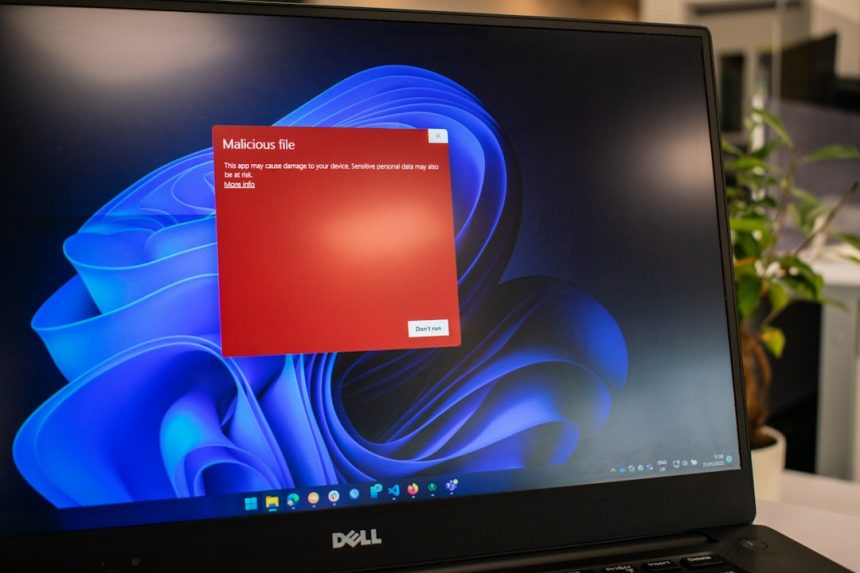
Whether you’re a casual computer user or a seasoned IT professional, encountering cryptic error messages during software operations can be frustrating. One particularly puzzling one is the “Self Protection Failed Error Code 4”, which often appears when trying to install or update security software like antivirus programs. This message might sound confusing at first, but it usually points to a relatively specific set of issues that you can address with a little know-how.
TL;DR:
This error typically occurs when antivirus software is unable to activate a security feature called “Self Protection,” which is designed to prevent tampering from malicious programs. Common causes include lingering remnants of other antivirus tools, damaged installations, or insufficient permissions. Fixing it involves steps like performing clean installations, adjusting permissions, or tweaking the system registry. Just follow the instructions outlined below to get your software running smoothly again.
What Is the “Self Protection Failed Error Code 4”?
The term “Self Protection” refers to a feature found in many modern antivirus and antimalware tools. It’s designed to safeguard the antivirus software itself from malicious modifications. When this feature fails and displays error code 4, it essentially signifies that the software couldn’t enable its own security shell. This might seem like a minor glitch, but it can make your system vulnerable if not addressed promptly.
Why This Error Occurs
There are several potential culprits behind this error:
- Conflicting software: Having more than one antivirus program installed can cause conflicts.
- Incomplete uninstallations: Leftover files from previous security software can interfere with new installations.
- Corrupt registry entries: Improper shutdown or malware infections can lead to broken registry files.
- Insufficient permissions: Sometimes, lack of administrative access can block execution of certain system functions.
Understanding the root cause is key because it allows you to select the best method for solving the problem.
Step-By-Step Solutions to Fix the Error
1. Perform a Clean Uninstallation
If you’re installing or updating antivirus software and see this error, start by completely removing any existing antivirus tools. This includes third-party programs and even trial versions that came preinstalled on your system.
Here’s how you do it:
- Open Add or Remove Programs (or Programs and Features on older versions of Windows).
- Select the antivirus software, then click Uninstall.
- After completion, restart your PC.
- Search online for your antivirus software’s official cleanup tool—these tools remove files left behind by standard uninstallers.
- Run the cleanup tool and reboot your system again.
2. Run the Installer as Administrator
User permissions can be a common source of issues when installing or updating system-level software. Simply running the installer as an administrator can sometimes resolve the problem.
To do this:
- Right-click on the installer file (*.exe).
- Select Run as Administrator.
- Follow the installation steps and check if the error still appears.
If this doesn’t work, move on to more advanced methods.
3. Use Compatibility Mode (For Older Software)
If the antivirus software was released years ago or hasn’t been updated to be compatible with your current operating system version, the “Self Protection” feature might have trouble integrating correctly. Running the installer in compatibility mode can help.
Steps:
- Right-click on the installer file and choose Properties.
- Go to the Compatibility tab.
- Check “Run this program in compatibility mode for:” and select the appropriate Windows version.
- Click Apply then OK, and try installing the software again.
4. Check for Interfering Startup Applications
Startup programs like other malware protection tools, firewalls, or even system optimization software can cause this error. Temporarily disabling unnecessary startup programs can minimize conflicts.
To do this on Windows:
- Press Ctrl + Shift + Esc to open the Task Manager.
- Navigate to the Startup tab.
- Right-click on irrelevant or third-party software and select Disable.
- Restart your system and try again.
5. Manually Edit the Windows Registry
Warning: This step should be performed only if you’re comfortable editing system files. Corrupted registry values linked to security software are sometimes the culprit.
Pro Tip: Always back up your registry before making changes.
Steps:
- Press Win + R and type regedit, then press Enter.
- Navigate to:
HKEY_LOCAL_MACHINE\SOFTWARE\[Your Antivirus Vendor]- Look for entries related to SelfProtect or similar features.
- If you find leftover entries from older versions or conflicting installations, delete them.
- Restart your computer afterward.
6. Update Windows and Drivers
Sometimes, outdated system files and drivers can cause compatibility issues with antivirus software. Make sure your system is up to date:
- Open Settings > Update & Security > Windows Update.
- Click on Check for updates and install any available ones.
- Restart your system after installation.
Additionally, keep your chipset, network adapter, and other essential drivers updated using the device manager or the manufacturer’s website.
What If Nothing Works?
If none of the above methods work, consider the following steps:
- Contact Customer Support: Antivirus vendors usually have dedicated technical support that can assist with deployment issues like this.
- Try Alternative Software: If repeated attempts fail, it might be worth trying a different security solution that is known to play better with your system’s environment.
- Reinstall Windows (Last Resort): Sometimes corrupted system files can persist through every effort. If the problem affects more than just your antivirus, a clean OS installation could be your best bet.
How to Prevent This Error in the Future
Once you’ve fixed the issue, keeping your system healthy will go a long way in preventing it from happening again.
Here are some tips:
- Avoid installing multiple antivirus programs. More isn’t always better when it comes to system defenders.
- Run periodic system maintenance, including malware scans and registry cleaning (using trusted tools).
- Always uninstall old antivirus completely before switching to a new one.
- Ensure you have administrative access when performing any software or system-level changes.
Conclusion
The “Self Protection Failed Error Code 4” may look intimidating, but it’s generally quite fixable using the solutions outlined above. From uninstalling conflicting software to tweaking system settings and performing registry edits, there’s a clear path to getting your antivirus software up and running the way it should. With a bit of persistence and attention to detail, you’ll not only resolve the current issue but also fortify your system against similar problems in the future.
Remember, system security starts with understanding how your tools work—and how to fix them when they don’t.