
Discord is one of the most reliable communication platforms for gamers, creators, and communities—but like any software, it isn’t immune to the occasional glitch. One particularly frustrating issue users sometimes encounter is the mysterious Discord Ultra Rare Error. It may appear without warning, disrupt voice chats, block messages, or even prevent the app from launching entirely. Because it is uncommon, solutions are not always obvious, leaving users confused about what to do next.
TL;DR: The Discord Ultra Rare Error is usually caused by corrupted cache files, outdated app versions, network conflicts, or server-side issues. Fixing it typically involves updating Discord, clearing the cache, checking your internet connection, and disabling conflicting programs. If those steps fail, reinstalling Discord or adjusting advanced network settings usually resolves the issue. Follow this guide step by step to restore your app quickly and safely.
What Is the Discord Ultra Rare Error?
The term “Ultra Rare Error” is not an official Discord error code but rather a label used by users to describe an unusual, difficult-to-reproduce bug. It can present itself in several ways, such as:
- Discord stuck on the “Checking for Updates” screen
- Endless loading loops
- Unexpected crashes during voice chats
- Blank gray screens after login
- Missing servers or channels
Because the issue varies across devices and operating systems, the fix may differ from user to user. However, the root causes usually fall into a few clear categories: software corruption, network interference, outdated installations, or conflicts with other applications.
Step 1: Check Discord’s Server Status
Before changing any settings on your device, confirm whether the problem is actually on Discord’s end. Even rare errors can sometimes be linked to server outages or maintenance windows.
How to check:
- Visit the official Discord status page.
- Check social media updates from Discord.
- Ask a friend if their app is functioning correctly.
If servers are down, patience is your only solution. Attempting fixes on your device will not resolve a server-side issue.

Step 2: Restart and Update Discord
Sometimes the simplest solution works best. Restarting the app can clear temporary glitches.
Complete restart process:
- Close Discord completely (not just minimize it).
- Open Task Manager (Windows) or Activity Monitor (Mac).
- End all Discord-related processes.
- Reopen the application.
Next, ensure you are running the latest version. Discord updates automatically, but update failures can occur silently. Downloading the newest installer from the official website and running it manually can repair broken update loops.
Step 3: Clear Discord Cache Files
Corrupted cache files are one of the most common reasons behind unusual or rare Discord errors. Cache stores temporary data to speed up performance—but when these files break, they can cause loading issues and crashes.
How to clear cache on Windows:
- Close Discord fully.
- Press Windows + R.
- Type %appdata% and press Enter.
- Locate and open the Discord folder.
- Delete the Cache, Code Cache, and GPUCache folders.
On Mac:
- Open Finder.
- Select Go to Folder.
- Paste ~/Library/Application Support/discord/.
- Remove the Cache-related folders.
Restart Discord afterward. In most cases, clearing cache resolves blank screens and loading loops instantly.
Step 4: Check Your Internet Connection
A weak or unstable internet connection can produce errors that resemble deeper software malfunctions. Discord relies heavily on stable connectivity for voice and message synchronization.
Quick network troubleshooting checklist:
- Restart your router and modem.
- Switch from Wi-Fi to a wired connection.
- Disable VPN temporarily.
- Turn off proxy settings.
- Flush DNS cache using command prompt.
To flush DNS on Windows, open Command Prompt and type:
ipconfig /flushdns
This simple step refreshes your system’s connection mappings and often eliminates rare connectivity-based Discord errors.
Step 5: Disable Conflicting Software
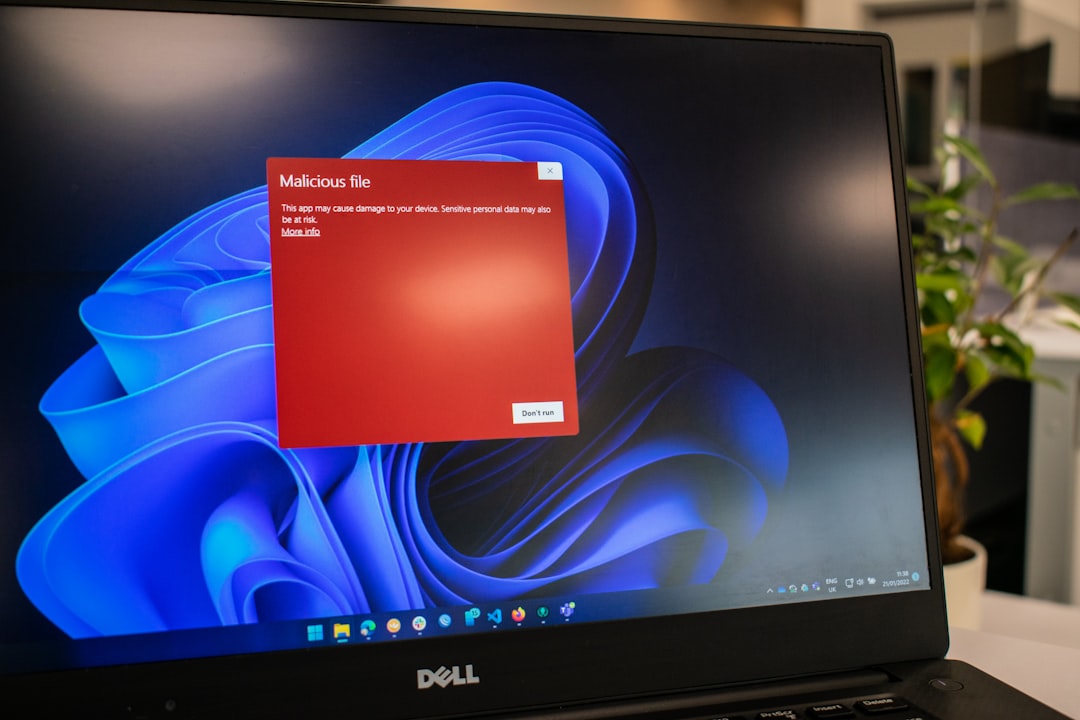
Certain background applications can interfere with Discord. Common culprits include:
- Antivirus programs
- Firewalls
- VPN software
- Overlays from gaming apps
- Hardware acceleration conflicts
Temporarily disable your antivirus (if safe to do so) and see whether the issue resolves. If Discord suddenly works, add it to your antivirus whitelist.
Additionally, try turning off Hardware Acceleration inside Discord settings under Advanced. While this feature improves performance, it can trigger rare graphical bugs on certain systems.
Step 6: Reinstall Discord Completely
If none of the above strategies solve the problem, a full reinstall is one of the most effective fixes. However, a proper reinstall goes beyond simply uninstalling the app.
Complete reinstallation process:
- Uninstall Discord via Control Panel (or Applications on Mac).
- Delete leftover Discord folders from:
- %appdata%
- %localappdata%
- Restart your computer.
- Download the latest installer from the official site.
- Install as administrator.
This ensures no corrupted configuration files remain hidden on your system.
Step 7: Adjust Advanced Network Settings
If the error still persists, advanced troubleshooting may be required.
Try these advanced fixes:
- Disable QoS High Packet Priority in Discord Voice settings.
- Reset network settings entirely.
- Change your DNS server to Google DNS (8.8.8.8 and 8.8.4.4).
- Check for Windows or macOS updates.
Switching to a public DNS server often resolves obscure connectivity problems caused by ISP-level routing inconsistencies.
Step 8: Test Discord Web Version
If the desktop version continues failing, try using Discord in your browser. This helps determine whether the problem is application-specific or account-related.
- If the web version works normally, the issue is likely your local installation.
- If the web version also fails, the problem may be account-related or server-based.
This comparison can save hours of unnecessary troubleshooting.
Step 9: Contact Discord Support
If you have exhausted all options, it may be time to reach out to Discord’s support team. When submitting a ticket, include:
- Your operating system version
- Screenshot of the error (if possible)
- Steps you have already taken
- Any specific error messages shown
The more detailed your report, the faster support can pinpoint the issue.
Preventing Future Discord Errors
While the Ultra Rare Error may not always be predictable, you can significantly reduce the chances of encountering it again by following these proactive tips:
- Keep Discord updated.
- Regularly clear cache files.
- Avoid installing conflicting overlays.
- Maintain stable internet connectivity.
- Update your operating system and drivers consistently.
Routine maintenance prevents many software-related surprises.
Why Rare Errors Happen in the First Place
Modern applications like Discord run across millions of devices with different hardware, drivers, and network configurations. Even with constant updates and bug patches, rare edge cases inevitably appear.
What makes an error “ultra rare” is typically:
- A unique hardware-software conflict
- An unusual network routing path
- Corrupted local configuration data
- Unexpected interaction with third-party software
Fortunately, most rare errors are fixable without permanent consequences. They may appear intimidating at first, but systematic troubleshooting almost always leads to success.
Final Thoughts
The Discord Ultra Rare Error can feel alarming, especially when it disrupts gaming sessions, community events, or important voice meetings. However, in most cases, the problem stems from manageable technical hiccups such as corrupted caches, outdated software, or network interference.
By following this comprehensive guide—checking server status, clearing cache, updating the app, adjusting network settings, and reinstalling when necessary—you significantly improve your odds of resolving the issue quickly.
Remember: troubleshooting works best when done step by step. Avoid skipping ahead or changing multiple settings at once. With patience and methodical effort, your Discord experience should be back to normal in no time.