Changing resolution in DaVinci Resolve is one of those essential skills that every video editor eventually needs to master. Whether you’re delivering a cinematic 4K project, preparing a 1080p YouTube upload, or creating vertical content for social media, understanding how resolution works inside the software can save you hours of frustration. Fortunately, DaVinci Resolve makes it relatively simple once you know where to look — and more importantly, what settings to adjust.
TLDR: To change resolution in DaVinci Resolve, go to Project Settings (gear icon at the bottom right), adjust the Timeline Resolution and Playback Resolution under the Master Settings tab, and save your changes. If exporting in a different resolution, configure it in the Deliver page. You can also create multiple timelines with different resolutions within the same project. Always double-check export settings to ensure your final output matches your desired resolution.
In this guide, we’ll walk through resolution settings step by step, explain the differences between project, timeline, playback, and export resolution, and help you avoid common mistakes along the way.
Understanding Resolution in DaVinci Resolve
Before making any changes, it’s important to understand that DaVinci Resolve handles resolution at multiple levels. These include:
- Project Resolution – The overall resolution for your project.
- Timeline Resolution – The resolution of a specific timeline.
- Playback Resolution – The resolution used for preview performance.
- Output (Export) Resolution – The final resolution of your rendered file.
These settings work together but can be adjusted independently. That flexibility is incredibly powerful — especially when working on projects intended for multiple platforms.
How to Change Project or Timeline Resolution
The most common change editors need to make is adjusting the timeline resolution. Here’s how you do it:
- Open your project in DaVinci Resolve.
- Click the gear icon in the bottom-right corner to open Project Settings.
- Make sure you’re in the Master Settings tab.
- Under Timeline Resolution, choose your desired resolution from the dropdown menu.
- Click Save.
Common resolution options include:
- 1920×1080 (Full HD)
- 3840×2160 (4K UHD)
- 4096×2160 (DCI 4K)
- 1280×720 (HD)
- Custom resolutions
If your timeline is already created, DaVinci may lock the resolution setting. In that case, you’ll need to:
- Create a new timeline with custom settings, or
- Right-click the existing timeline in the Media Pool and choose Timeline Settings (if unlocked)
Creating a New Timeline with a Different Resolution
If you need multiple aspect ratios — say one for YouTube and one for Instagram Reels — creating separate timelines is often the best workflow.
- Right-click in the Media Pool.
- Select Create New Timeline.
- Uncheck Use Project Settings.
- Set your custom resolution and frame rate.
- Click Create.
This method gives you full control without affecting the rest of your project.
How to Change Playback Resolution for Better Performance
Playback resolution affects how smoothly your video runs during editing — not the final export quality. If your system struggles with 4K footage, lowering playback resolution can dramatically improve performance.
To adjust playback resolution:
- Go to the top menu and click Playback.
- Select Timeline Proxy Resolution.
- Choose: Half Resolution or Quarter Resolution.
This doesn’t reduce quality permanently — it simply shows a lower-resolution preview while maintaining full-quality footage for export.
For even better performance, enable:
- Render Cache
- Optimized Media
- Proxy Media Workflow
These tools are lifesavers when editing high-resolution footage.
How to Change Export Resolution
Sometimes, you may want to edit in 4K but export in 1080p. That’s completely possible in DaVinci Resolve — and often recommended.
Image not found in postmetaHere’s how to adjust export resolution:
- Go to the Deliver page.
- Choose a preset (e.g., YouTube 1080p).
- Scroll down to the Resolution section.
- Select your desired output resolution.
- Add to Render Queue and export.
Export resolution can be lower or higher than your timeline resolution, but scaling quality depends on your source material.
Upscaling vs Downscaling
- Downscaling (4K to 1080p) – Usually improves sharpness and reduces noise.
- Upscaling (1080p to 4K) – May result in softer image unless enhanced with tools like Super Scale.
DaVinci Resolve Studio includes advanced upscaling options powered by AI.
Working with Different Aspect Ratios
Resolution isn’t just about pixel count — it also determines aspect ratio.
Some common aspect ratios include:
- 16:9 – Standard widescreen (YouTube, TV)
- 9:16 – Vertical (TikTok, Instagram Reels)
- 1:1 – Square (Instagram Feed)
- 2.39:1 – Cinematic widescreen
To create vertical content:
- Open Project Settings.
- Set a custom resolution like 1080×1920.
- Reframe your footage as needed.
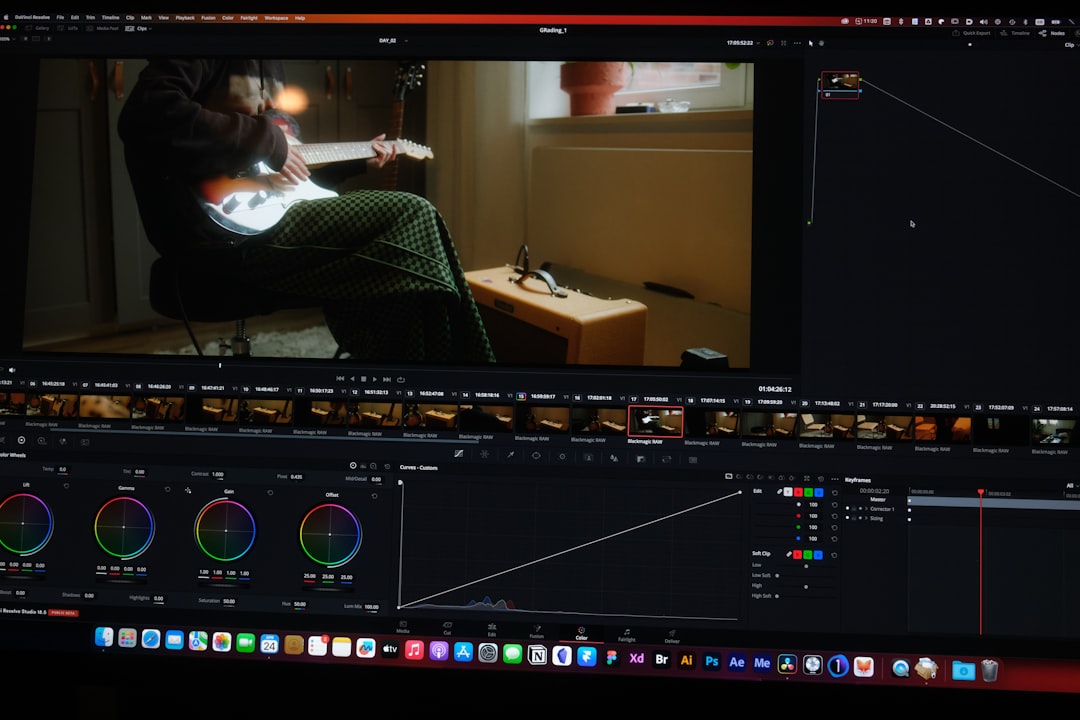
You may need to adjust scaling in the Inspector panel to properly frame clips within the new aspect ratio.
Common Problems When Changing Resolution
Even experienced editors run into issues when adjusting resolution. Here are some common ones — and how to fix them:
1. Resolution Settings Are Locked
If you can’t change timeline resolution, the timeline is likely already created with project settings locked in. Solution:
- Create a new timeline with custom settings.
2. Black Bars Appear
This happens when aspect ratios don’t match. You can:
- Zoom in using the Inspector
- Adjust Input Scaling in Project Settings
- Use Output Blanking creatively for cinematic looks
3. Export Doesn’t Match Timeline Resolution
Always verify export settings in the Deliver page. Presets often override default resolution.
4. Playback Is Too Slow After Switching to 4K
Switch Timeline Proxy Resolution to Half or Quarter and consider generating optimized media.
Best Practices for Choosing the Right Resolution
Choosing the right resolution depends on your delivery platform and workflow. Here are some practical recommendations:
- YouTube: Edit in 4K if possible, even if delivering in 1080p.
- Social Media: Create separate vertical timelines.
- Film Projects: Match the acquisition resolution.
- Client Work: Always confirm delivery specs before editing.
Editing in higher resolution offers flexibility for cropping and stabilization. However, it requires more processing power and storage.
Advanced Scaling Settings
Under Image Scaling in Project Settings, you can fine-tune how footage is resized.
Options include:
- Scale entire image to fit
- Scale full frame with crop
- Stretch frame to all corners
Scaling algorithms such as Sharper or Smoother can improve visual quality depending on whether you’re enlarging or reducing footage.
Professionals often test different scaling methods before final export to ensure the cleanest possible image.
Final Thoughts
Changing resolution in DaVinci Resolve isn’t complicated — but understanding how the different resolution settings interact makes all the difference. Whether you’re adapting content for multiple platforms, improving playback performance, or preparing high-resolution client deliveries, mastering these tools gives you full control over your workflow.
The key takeaway is this: always think ahead about your final output, set up your project carefully from the beginning, and double-check export settings before rendering. A few mindful adjustments upfront can save hours of re-editing later.
Once you get comfortable navigating Project Settings and the Deliver page, changing resolution becomes second nature — and you’ll be free to format your content for any platform with confidence.