Many users expect crystal-clear imagery when exploring locations through Google Street View, only to be disappointed when the scene appears blurry, pixelated, or indistinct. Whether you are checking out a future travel destination, verifying a business address, or simply exploring a neighborhood, image sharpness matters. However, there are multiple technical, legal, and environmental reasons why Google Street View may not appear as sharp as you expect.
TLDR: Google Street View may look blurry due to resolution limits, camera technology, compression, internet speed, or intentional privacy blurring. Older imagery and rural areas often display lower clarity compared to recently updated urban locations. Device settings and browser performance also affect sharpness. In many cases, the issue is not an error but a design limitation or protective measure.
Understanding How Google Street View Captures Images
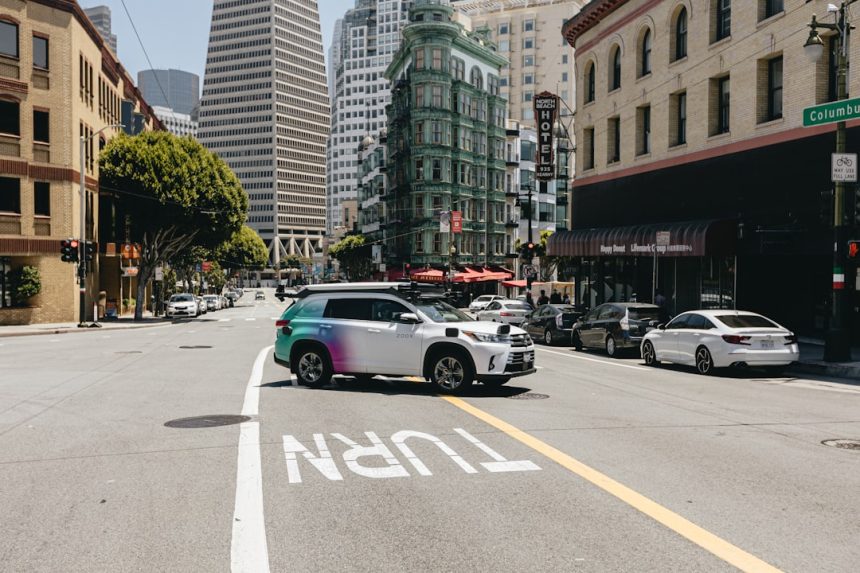
To understand why Street View may not appear sharp, it helps to examine how the imagery is created. Google uses specialized camera systems mounted on cars, tripods, boats, snowmobiles, and even backpacks. These systems capture panoramic images using multiple lenses combined into a 360-degree representation of a street scene.
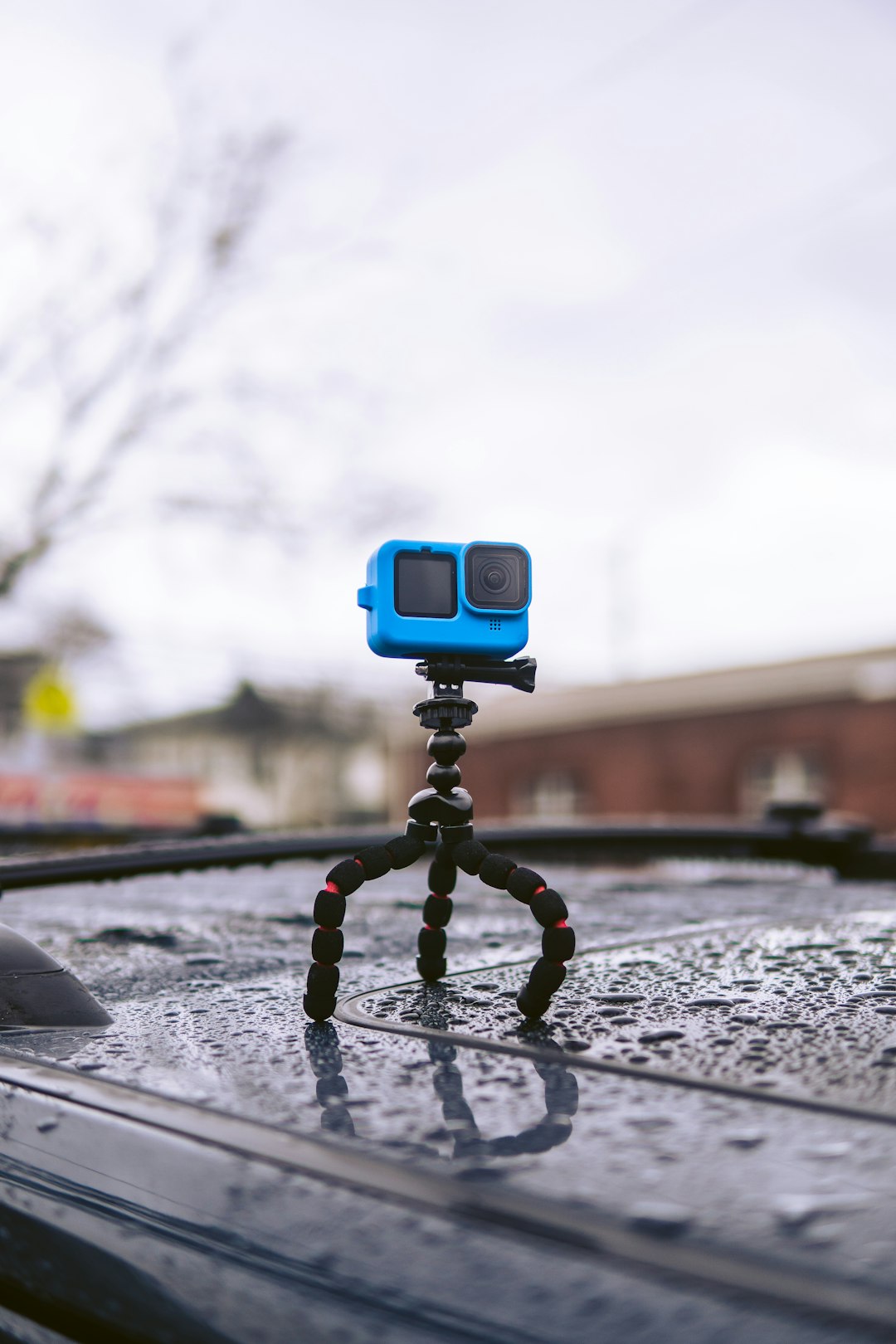
The resulting photographs are not simple snapshots. They undergo extensive processing:
- Stitching: Multiple images are blended into a seamless panoramic view.
- Compression: File sizes are reduced to enable fast loading worldwide.
- Privacy filtering: Faces and license plates are automatically blurred.
- Geospatial alignment: Images are positioned precisely on maps.
Each of these steps can reduce sharpness. Image compression, in particular, sacrifices some detail to ensure that users can navigate quickly without excessive data usage.
Resolution Limitations and Bandwidth Constraints
Even though Google captures extremely high-resolution source images, what you see on your screen is often a scaled and compressed version. This is intentional. Delivering full-resolution imagery to millions of users simultaneously would:
- Increase load times significantly
- Consume large amounts of mobile data
- Cause performance issues on older devices
Google optimizes for accessibility and speed rather than photographic perfection. Depending on your internet connection, Google may dynamically lower image quality to prevent buffering. If your connection fluctuates, you may notice temporary blur while higher resolution tiles load in the background.
Older Street View Imagery
Not all Street View imagery is the same age. In fact, some areas were captured over a decade ago. Older camera systems had lower resolution sensors and less advanced stitching software, resulting in visibly softer images.
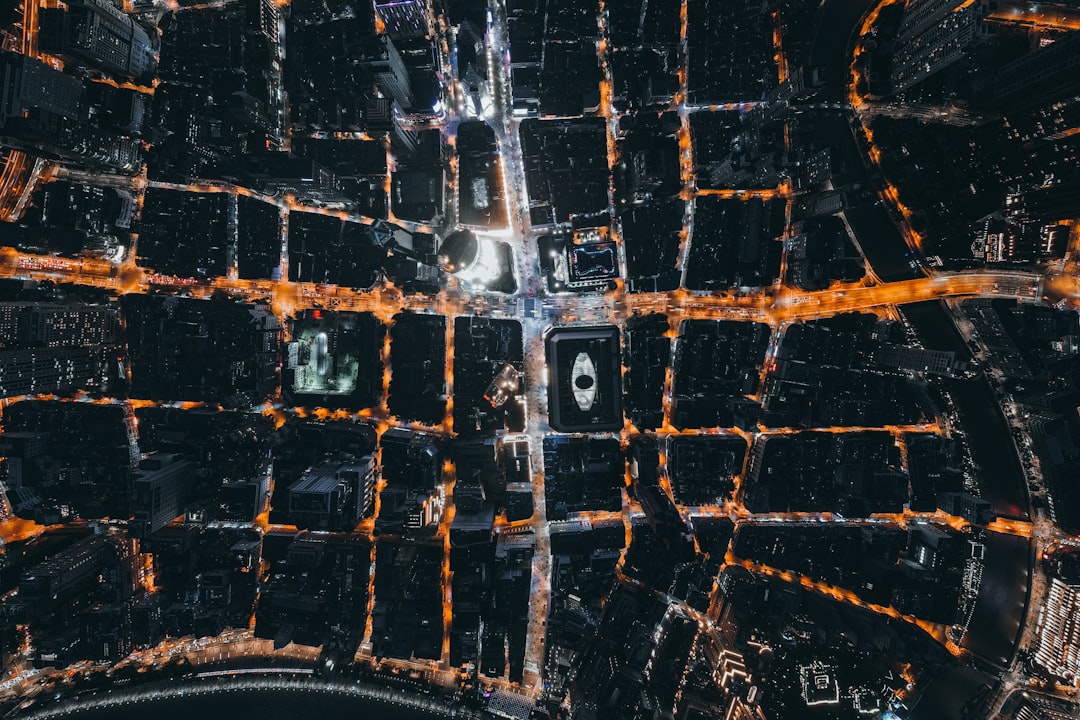
Urban areas tend to be updated more frequently than rural or remote regions. Therefore:
- Major cities often display clearer, newer images.
- Small towns may still show legacy data.
- Remote roads can remain unchanged for years.
If a location hasn’t been refreshed recently, the lack of sharpness may simply reflect outdated technology used at the time of capture.
Privacy Blurring and Intentional Softening
One important factor often mistaken for poor image quality is intentional blurring. Google is legally required to protect individual privacy, which means:
- Faces are automatically blurred.
- Vehicle license plates are obscured.
- Private properties can be blurred upon request.
Advanced algorithms attempt to detect and mask sensitive details, but sometimes this creates adjacent soft areas or artifacts that reduce perceived clarity. In some cases, entire buildings or sections of a street are deliberately blurred when requested by property owners.
This is not a technical failure but a compliance measure designed to meet global privacy standards.
Image Stitching Artifacts
Street View imagery is created by combining data from multiple camera lenses positioned at different angles. Although modern stitching technology is highly advanced, it is not perfect. You may notice:
- Wavy lines on moving objects
- Distorted pedestrians
- Misaligned edges on buildings
- Slight softness near stitch boundaries
These artifacts can create the impression of blur, even if the underlying resolution is relatively high.
Your Device and Display Settings
Sometimes the issue is not Google Street View itself but your device environment. Image clarity depends on several local factors:
- Screen resolution: Low-resolution monitors display fewer details.
- Zoom level: Excessive zooming stretches pixels beyond their native resolution.
- Browser performance: Outdated browsers may struggle to render higher-quality tiles.
- Graphics hardware: Weak GPUs may trigger lower-quality rendering modes.
Try viewing Street View on another device or network. If the image appears sharper elsewhere, your hardware or connection is likely the cause.
Internet Speed and Dynamic Loading
Google uses adaptive streaming techniques. Initially, a lower-resolution preview appears while higher-resolution data loads progressively. If your internet connection is slow or unstable, the interface may never fully replace the preview with a sharper version.

Common causes of reduced sharpness due to internet conditions include:
- Public Wi-Fi congestion
- Mobile data throttling
- High latency connections
- Background downloads consuming bandwidth
Running a speed test and ensuring stable connectivity can resolve many perceived clarity issues.
Weather and Environmental Conditions
Street View vehicles operate in real-world conditions. Weather, lighting, and environmental factors significantly influence image clarity. For example:
- Fog can reduce contrast and sharpness.
- Rain droplets may create lens artifacts.
- Harsh sunlight can cause glare and overexposure.
- Snow may wash out fine details.
Unlike controlled photography sessions, Street View captures streets as they are at that moment. Imperfect atmospheric conditions can permanently affect the captured data until the location is re-photographed.
Urban Density and Motion Blur
In busy city centers, moving objects such as cars, cyclists, and pedestrians can introduce motion blur. Because Street View vehicles are in motion while capturing imagery, fast-moving subjects sometimes appear smeared or soft.
Higher-density traffic environments often result in more visual distortion compared to empty rural roads. This is not necessarily due to low resolution but rather to motion artifacts during capture.
Compression Algorithms and Data Efficiency
Delivering Street View globally requires immense storage and bandwidth. Google applies lossy compression algorithms to balance:
- Image quality
- Loading speed
- Infrastructure cost
- User accessibility on mobile networks
Lossy compression inevitably removes subtle image details. Fine textures such as brickwork, foliage, and distant signage are particularly vulnerable to compression smoothing.
While this may disappoint users seeking photographic precision, it ensures that Street View remains functional and responsive worldwide.
Is It Possible to Improve Sharpness?
Although you cannot alter Google’s original image data, you can optimize your viewing experience:
- Use a high-resolution display.
- Ensure a stable, high-speed internet connection.
- Close unused background applications.
- Update your browser to the latest version.
- Disable browser extensions that may interfere with rendering.
If the imagery itself is outdated or inherently low resolution, there may be no immediate fix other than waiting for Google to update the area. Major cities often receive updates every one to three years, while remote regions may take longer.
When Blurriness Is a Deliberate Choice
Finally, it is crucial to recognize that Google Street View prioritizes functionality over perfection. The platform is designed primarily for navigation and spatial reference, not high-fidelity visual inspection.
Sharpness levels are intentionally balanced against:
- User privacy requirements
- Global accessibility standards
- Performance across billions of devices
- Operational and infrastructure costs
Therefore, what may appear to be a flaw is often a calculated trade-off between clarity, safety, and scalability.
Conclusion
If Google Street View does not appear sharp, the cause is rarely a simple technical failure. Instead, it typically results from a combination of resolution scaling, compression, aging imagery, privacy protections, and environmental capture conditions. In some cases, your own device settings or internet speed are responsible for the reduced clarity.
Understanding these factors provides a clearer perspective on what Street View is designed to accomplish. It is a powerful navigational and mapping tool serving billions worldwide — and while it may not deliver studio-quality imagery, it remains one of the most sophisticated public visual mapping systems ever built.