
You’re chilling, opening up your favorite app like Discord or Visual Studio Code… then boom! 🚨 A box pops up and says: “A JavaScript error occurred in the main process.” What? Why? How dare it? Don’t worry, we’ve got your back. Let’s break it down and fix this pesky error fast — and maybe even have some fun doing it.
TL;DR:
This JavaScript error is usually caused by a corrupted app file or misconfigured settings. Try deleting app data, running as admin, or reinstalling the app. It’s quick to fix if you know where to look. Below are step-by-step methods anyone can try, even beginners.
What Is This Error Anyway?
First, let’s understand the error message. When you get “A JavaScript error occurred in the main process,” it means there’s something wrong with a file the app is trying to run. It’s like asking a robot to make cookies but giving it a burned recipe. ⚠️
You’ll usually see this error when launching Electron-based apps like:
- Discord
- Microsoft Teams
- Visual Studio Code
- Skype
They all rely on JavaScript, and sometimes, things go wrong. Let’s go hunting for the fix. 🕵️♂️
Fix 1: Delete App Data
This is the most common fix. Old or corrupted app data causes many issues.
- Press Windows + R to open the Run dialog.
-
Type
%appdata%and hit Enter. - Find the folder named after your app (like Discord).
- Right-click it and select Delete.
You’re just clearing out the garbage files. The app will build new ones when it runs again.
Note: Don’t worry, you’re not breaking anything. Just removing temporary stuff.
Now try launching the app again!

Fix 2: Run as Administrator
Sometimes the app can’t do what it wants because Windows says “Nope!” Running it with admin rights can help.
- Right-click your app icon (like Discord or VS Code).
- Choose Run as Administrator.
Still no luck? Don’t worry. Let’s keep going!
Fix 3: Reinstall the App
This one’s simple. If it’s broken, smash it and build a new one. 🚧
- Open Control Panel > Programs > Uninstall a program.
- Find the app, right-click, and choose Uninstall.
- Once removed, go to the official website and download the latest version.
- Install it like a pro. 🎉
This replaces corrupted files and gives your app a fresh start.
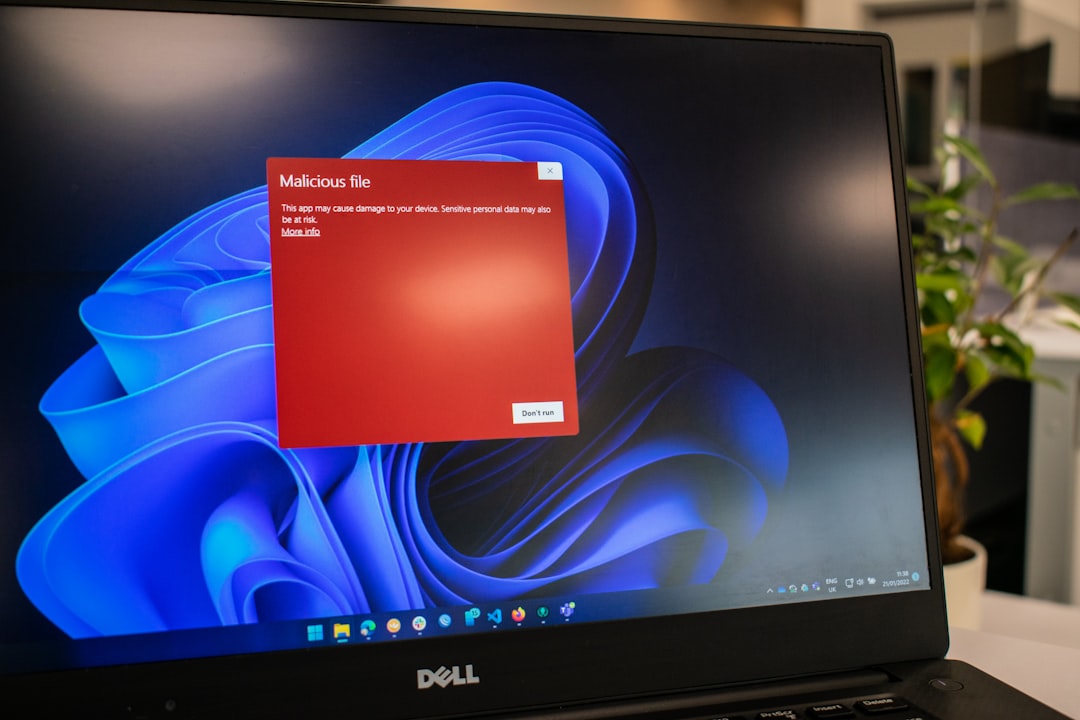
Fix 4: Check Your Antivirus
Sometimes, antivirus software gets a little too protective. It might block files the app needs to run.
Try this:
- Temporarily disable your antivirus (just for a minute!)
- Try opening the app again
- If it works, add the app to your antivirus’s safe list
Don’t forget to turn your antivirus back on after testing! 🔐
Fix 5: Repair with Windows Settings
Some apps have a built-in repair tool inside Windows.
- Go to Settings > Apps > Installed Apps.
- Find the app (such as Discord).
- Click the three dots (…) and then hit Advanced Options.
- Click Repair or Reset.
Let Windows do its thing. 🛠️
Bonus Fix: Delete Settings.json (Advanced!)
If you’re comfy with files and folders, here’s a geeky fix that might help. Some apps store their settings in a settings.json file. If that file gets messed up, game over!
To fix it:
- Navigate to
C:\Users\YourName\AppData\Roaming\YourApp(replace “YourApp” with the actual app name). - Look for
settings.json. - Delete it (or rename it to
settings_old.jsonjust in case).
The app will make a new default file when it runs next time.
When Nothing Works 😞
Here are some extra tricks to try:
- Update Windows to the latest version
- Make sure you have the latest .NET Framework installed
- Check for updates to the app
- Restart your computer (seriously — try it!)
If you’re still seeing the error… it might be time to contact support or head to Reddit for help. You’re not alone! 🙌
Quick Recap
Let’s go over all the ways you can fix the JavaScript main process error:
- Delete App Data (
%appdata%) - Run the app as an Administrator
- Reinstall the app
- Disable antivirus temporarily
- Try the Windows repair/reset feature
- Delete corrupted JSON settings files
Fun Tip 🧙♀️
Want to avoid this in the future?
- Keep your apps updated.
- Don’t install sketchy plugins or extensions.
- Make routine backups of your AppData folder just in case.
It’s like giving your apps regular dental checkups. 🦷
And That’s a Wrap!
Errors like this one may seem scary at first, but now you know how to tackle it step-by-step. And hey — chances are high that one of the fixes above will solve your problem.
Next time you see that annoying little pop-up, just think: “Ha! I’ve read the guide. You can’t fool me!” 😎
Happy bug fixing, and may your JavaScript always behave!