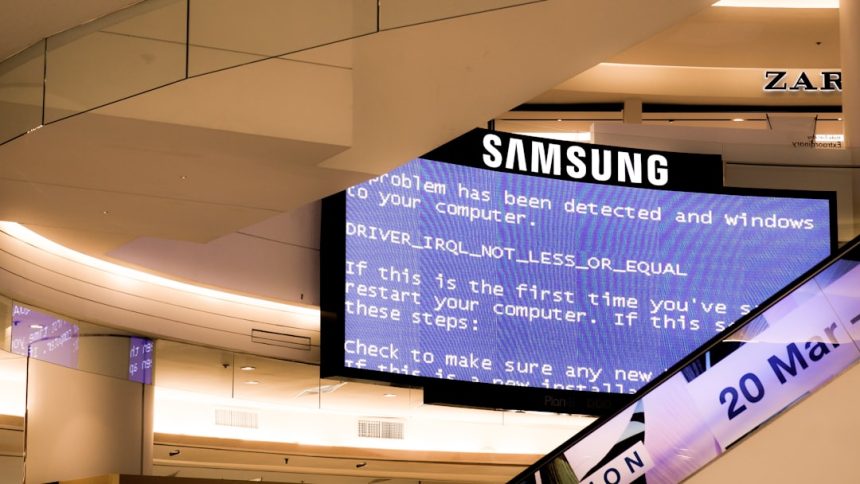
When your system throws the “amdryzenmasterdriver.sys cannot load” error, it can be both confusing and frustrating—especially if you rely on AMD Ryzen Master for performance tuning and monitoring. This driver plays a crucial role in enabling communication between your hardware and the Ryzen Master software. When it fails to load, you may experience startup errors, reduced performance control, or even system instability. Fortunately, this issue is usually fixable with a structured approach.
TL;DR: The “amdryzenmasterdriver.sys cannot load” error typically occurs due to corrupted drivers, Windows security conflicts, outdated chipset drivers, or incomplete software installations. Fixing it often involves reinstalling Ryzen Master, updating AMD chipset drivers, disabling memory integrity, or repairing corrupted system files. In most cases, the solution is straightforward and doesn’t require advanced technical knowledge. Follow a step-by-step troubleshooting approach to resolve the issue safely.
What Is amdryzenmasterdriver.sys?
The amdryzenmasterdriver.sys file is a system driver associated with AMD Ryzen Master, AMD’s official overclocking and performance monitoring utility. This driver allows the software to directly interface with Ryzen CPUs, enabling features such as:
- CPU overclocking
- Voltage control
- Thermal monitoring
- Performance tuning profiles
If this driver fails to load, Ryzen Master cannot communicate with your processor correctly. This may trigger error messages during startup or when launching the application.
Common Causes of the Error
Before diving into solutions, it helps to understand what may be causing the problem. The most frequent reasons include:
- Corrupted or incomplete Ryzen Master installation
- Outdated AMD chipset drivers
- Windows Security blocking the driver
- Core Isolation or Memory Integrity enabled
- Windows updates conflicting with the driver
- Corrupted system files
Identifying the root cause will help you apply the right fix more efficiently.
Step 1: Reinstall AMD Ryzen Master
One of the simplest and most effective solutions is to completely reinstall Ryzen Master.
How to do it:
- Press Windows + R, type appwiz.cpl, and press Enter.
- Locate AMD Ryzen Master in the list.
- Select it and click Uninstall.
- Restart your computer.
- Download the latest version from the official AMD website.
- Install it and reboot again.
Make sure you download the most recent version compatible with your processor and Windows version. Outdated installers commonly trigger this error.
Step 2: Update AMD Chipset Drivers
The Ryzen Master driver depends heavily on proper chipset functionality. If your chipset drivers are outdated, Windows may prevent amdryzenmasterdriver.sys from loading correctly.
To update your chipset drivers:
- Visit the official AMD support website.
- Search for your motherboard chipset model.
- Download the latest chipset driver package.
- Run the installer and follow the prompts.
- Restart your PC after installation.
This step alone resolves the issue for many users.
Step 3: Disable Memory Integrity (Core Isolation)
Windows Security includes a feature called Memory Integrity, part of Core Isolation. While it improves system protection, it can sometimes block unsigned or older drivers like amdryzenmasterdriver.sys.
To disable Memory Integrity:
- Open Windows Security.
- Click Device Security.
- Select Core Isolation Details.
- Toggle Memory Integrity off.
- Restart your computer.
Important: Only disable this setting if you trust the software you’re using. Ryzen Master from AMD’s official site is generally safe.
Step 4: Run System File Checker
If corrupted Windows system files are interfering with driver loading, running built-in repair utilities can fix the issue.
Follow these steps:
- Click the Start menu.
- Search for Command Prompt.
- Right-click and choose Run as administrator.
- Type the following command:
sfc /scannow
Press Enter and wait for the scan to complete.
If issues are found, Windows will attempt to repair them automatically.
You can also run:
DISM /Online /Cleanup-Image /RestoreHealth
This command repairs deeper system image problems that SFC cannot fix.
Step 5: Check Windows Updates
Sometimes, Windows updates introduce compatibility changes that prevent older drivers from loading.
To check for updates:
- Go to Settings
- Select Windows Update
- Click Check for updates
If an update recently caused the issue, consider:
- Installing optional driver updates
- Rolling back to a previous version temporarily
- Waiting for an AMD patch update
Keeping both Windows and AMD software aligned in version compatibility is essential.
Step 6: Remove Leftover Driver Files
Incomplete uninstalls can leave behind corrupted driver remnants.
To clean leftover files:
- Uninstall Ryzen Master.
- Restart your computer.
- Navigate to: C:\Program Files\AMD\
- Delete any remaining Ryzen Master or related folders.
- Open Device Manager.
- Check under System devices for AMD-related entries.
Advanced users can also use trusted driver cleanup utilities, but proceed carefully to avoid removing essential files.
Step 7: Check BIOS Settings
Occasionally, BIOS-level settings can interfere with Ryzen Master functionality.
Check the following in your BIOS:
- SVM Mode (Virtualization) — try enabling or disabling
- Secure Boot — ensure compatibility
- Precision Boost Overdrive settings
Updating your motherboard BIOS to the latest stable version can also resolve compatibility issues. However, BIOS flashing should be done carefully, following manufacturer instructions.
Step 8: Perform a Clean Boot
Sometimes third-party programs interfere with driver initialization.
To perform a clean boot:
- Press Windows + R.
- Type msconfig and press Enter.
- Go to the Services tab.
- Check Hide all Microsoft services.
- Click Disable all.
- Restart your computer.
If Ryzen Master works after this, gradually re-enable services to find the conflict source.
When All Else Fails
If none of the above solutions resolve the issue, consider these advanced options:
- System Restore to a point before the error started
- In-place Windows repair upgrade
- Contacting AMD Support
- Checking motherboard manufacturer support pages
In rare cases, hardware instability caused by aggressive overclocking may also prevent driver loading. Reset BIOS settings to default if you suspect instability.
Preventing Future Driver Problems
Once the issue is resolved, keep your system stable with these best practices:
- Download drivers only from official sources
- Keep chipset and BIOS updated
- Avoid beta software unless necessary
- Create restore points before system changes
- Monitor Windows Security updates
Maintaining a clean and updated environment significantly reduces recurrence of driver errors.
Final Thoughts
The “amdryzenmasterdriver.sys cannot load” error may seem intimidating at first, but in most cases, it’s caused by software conflicts, outdated drivers, or Windows security settings. By methodically reinstalling Ryzen Master, updating chipset drivers, checking security features, and repairing system files, you can restore functionality without professional assistance.
Ryzen processors are powerful tools for enthusiasts and professionals alike. Ensuring that supporting drivers load correctly allows you to take full advantage of your system’s capabilities safely and efficiently.
With patience and the right troubleshooting steps, you’ll have Ryzen Master running smoothly again in no time.