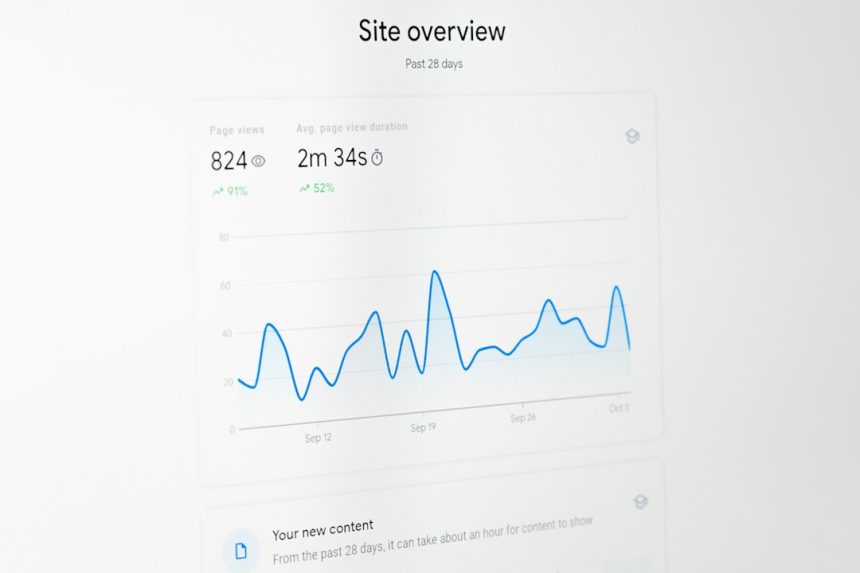
Spam accounts and fake traffic can quietly distort your Google Analytics data, making it harder to understand what is actually happening on your website. Whether you run a blog, an eCommerce store, or a corporate site, accurate analytics are critical for making informed business decisions. Unfortunately, referral spam, bot traffic, and ghost visits can infiltrate your reports, inflating numbers and skewing metrics like bounce rate, session duration, and conversion rates. The good news is that with a few practical steps, you can clean up your data and protect your reporting accuracy.
TLDR: Spam traffic in Google Analytics distorts your website data and leads to poor decision-making. You can remove and prevent spam accounts by filtering suspicious hostnames, blocking fake referrals, enabling bot filtering, and configuring proper tracking settings. Regular monitoring and updated filters are essential to maintain clean analytics data. A proactive approach keeps your reports accurate and trustworthy.
Understanding Google Analytics Spam
Before removing spam, it’s important to understand what it looks like. There are generally two main types of spam in Google Analytics:
- Ghost Spam: Fake hits sent directly to your Analytics property without visiting your website.
- Crawler Spam: Bots that actually visit your site and leave fake referral data.
Ghost spam is particularly frustrating because it never touches your server; instead, it exploits your tracking ID. Crawler spam, on the other hand, can sometimes be blocked via server configurations or firewall settings.
Common signs of spam traffic include:
- Sudden spikes in traffic from unfamiliar countries
- Referrals from suspicious domain names
- Extremely high bounce rates (often 100%)
- Near-zero average session durations
Spotting these patterns early makes removal much easier.
Step 1: Enable Google’s Built-in Bot Filtering
Google Analytics offers a simple but effective first line of defense. To enable it:
- Go to Admin in your Google Analytics account.
- Under View Settings, find the checkbox labeled “Exclude all hits from known bots and spiders.”
- Check the box and save.
This setting filters traffic from bots on the Interactive Advertising Bureau (IAB) blacklist. While it doesn’t eliminate all spam, it removes many known threats instantly.
Important: Always create a backup view before applying filters. This ensures you retain unfiltered data if something goes wrong.
Step 2: Identify Suspicious Hostnames
Ghost spam often uses fake hostnames. To verify legitimate traffic:
- Go to Audience > Technology > Network.
- Change the primary dimension to Hostname.
Legitimate hostnames should match your domain, such as:
- yourwebsite.com
- www.yourwebsite.com
- subdomain.yourwebsite.com
Spam hostnames often look strange, unrelated, or completely fake.
Once identified, create a filter to include only valid hostnames:
- Go to Admin > Filters.
- Click Add Filter.
- Choose Custom > Include.
- Select Hostname.
- Enter a regex pattern containing your valid domains.
This ensures that only traffic from legitimate sources is included in your reports.
Step 3: Block Fake Referral Sources
Spam referrals are designed to trick you into visiting suspicious websites. To block them, you need to exclude specific referral sources.
First, identify spam domains:
- Navigate to Acquisition > All Traffic > Referrals.
- Scan for suspicious or unfamiliar websites.
Then create an exclusion filter:
- Go to Admin > Filters.
- Click Add Filter.
- Select Custom > Exclude.
- Choose Campaign Source.
- Enter the spam domain name.
You can combine multiple domains using regular expressions. This keeps your filter cleaner and more efficient.
Pro Tip: Maintain a regularly updated list of known spam domains to refine your filters over time.
Step 4: Use Segments to Analyze Existing Spam
Filters only affect new data—they do not clean historical data. To analyze past spam traffic, create a segment:
- Create a new segment.
- Define conditions such as suspicious hostnames or referral sources.
- Apply the segment to isolate fake traffic.
This allows you to compare clean vs. spam traffic and better understand how much distortion occurred.
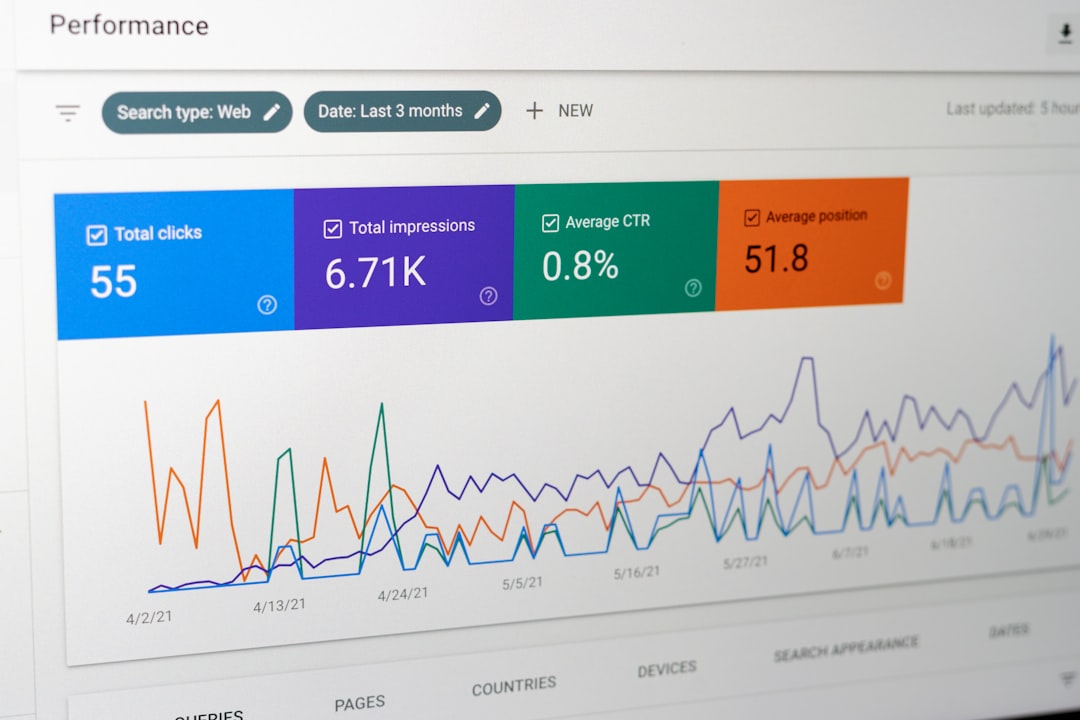
Segments are powerful investigative tools that help you uncover trends hidden beneath inflated numbers.
Step 5: Implement Server-Level Protections
For crawler spam, filtering inside Google Analytics may not be enough. Consider server-level protections such as:
- Blocking suspicious IP addresses
- Using a firewall or security plugin
- Enabling bot mitigation tools
- Implementing CAPTCHA on forms
Popular services like Cloudflare offer bot management tools that filter malicious traffic before it ever reaches your website. This protects both your analytics and your server resources.
Step 6: Protect Your Tracking ID
Because ghost spam sends fake data using your tracking ID, protecting it is crucial. While you cannot completely hide your tracking ID, you can reduce misuse by:
- Using Google Tag Manager to better control tag firing
- Setting up measurement protocol validation where possible
- Ensuring proper hostname filters are active
In Google Analytics 4 (GA4), data streams and measurement IDs function differently than in Universal Analytics, but similar filtering principles still apply.
Step 7: Monitor Traffic Regularly
Spam tactics evolve constantly. What works today may not catch tomorrow’s threats. Establish a regular review process:
- Check referral reports weekly
- Audit hostnames monthly
- Review geographic traffic patterns
- Look for sudden traffic spikes
Set up custom alerts in Google Analytics to notify you when unusual traffic surges occur. Early detection is key to minimizing damage.

Common Mistakes to Avoid
While removing spam accounts, avoid these common pitfalls:
- Editing the main view without a backup
- Using overly broad filters that block real users
- Ignoring small spikes that later grow larger
- Failing to document filter changes
Over-filtering can be just as damaging as under-filtering. Always test filters in a separate view first.
Why Clean Analytics Data Matters
Accurate data impacts everything from marketing budgets to UX improvements. Inflated traffic numbers may give a false sense of success, while distorted bounce rates can lead to unnecessary website redesigns. Clean data allows you to:
- Measure ROI accurately
- Improve conversion rate optimization strategies
- Refine audience targeting
- Allocate advertising spend more effectively
When you remove spam, you gain clarity. And clarity leads to better decisions.
Maintaining Long-Term Protection
Spam removal is not a one-time task. Think of it as ongoing digital hygiene. Schedule quarterly analytics audits, document every filter applied, and stay informed about emerging spam trends.
If your website generates significant revenue, consider working with an analytics professional to ensure advanced configurations are correctly implemented. For businesses that rely heavily on data, proactive monitoring often pays for itself many times over.
Final Thoughts
Spam accounts in Google Analytics may seem like a minor annoyance, but left unchecked, they can undermine your entire data strategy. By enabling built-in bot filtering, validating hostnames, excluding fake referrals, applying segments, and implementing server-level defenses, you can reclaim control over your reports. Clean data empowers smarter marketing, better budgeting, and stronger performance insights.
Ultimately, the goal isn’t just to remove spam—it’s to build a reliable analytics environment where every number tells the real story of your website’s performance. With consistent effort and the right safeguards in place, you can ensure that your Google Analytics property remains a trusted source of truth for your business.