If you spend a lot of time at your computer, you know how important it is to have a personalized and inspiring workspace. Customizing your desktop can go beyond simply changing your wallpaper — with the help of a Mac app wallpaper, you can create a dynamic and interactive environment that elevates your user experience. Whether you’re looking to stay productive, organized, or simply want your screen to reflect your personality, learning how to customize your Mac desktop with specialized apps can make a big difference.
TLDR: Want to spice up your Mac desktop beyond the usual static wallpaper? Use specialized Mac wallpaper apps to display live visuals, calendars, productivity tools, and even widgets right on your home screen. These apps offer powerful customization options that can be tailored to your needs, whether you’re aiming for aesthetics, functionality, or both. Read on to learn which apps to use and how to set up your ideal desktop environment.
Why Use a Mac Wallpaper App?
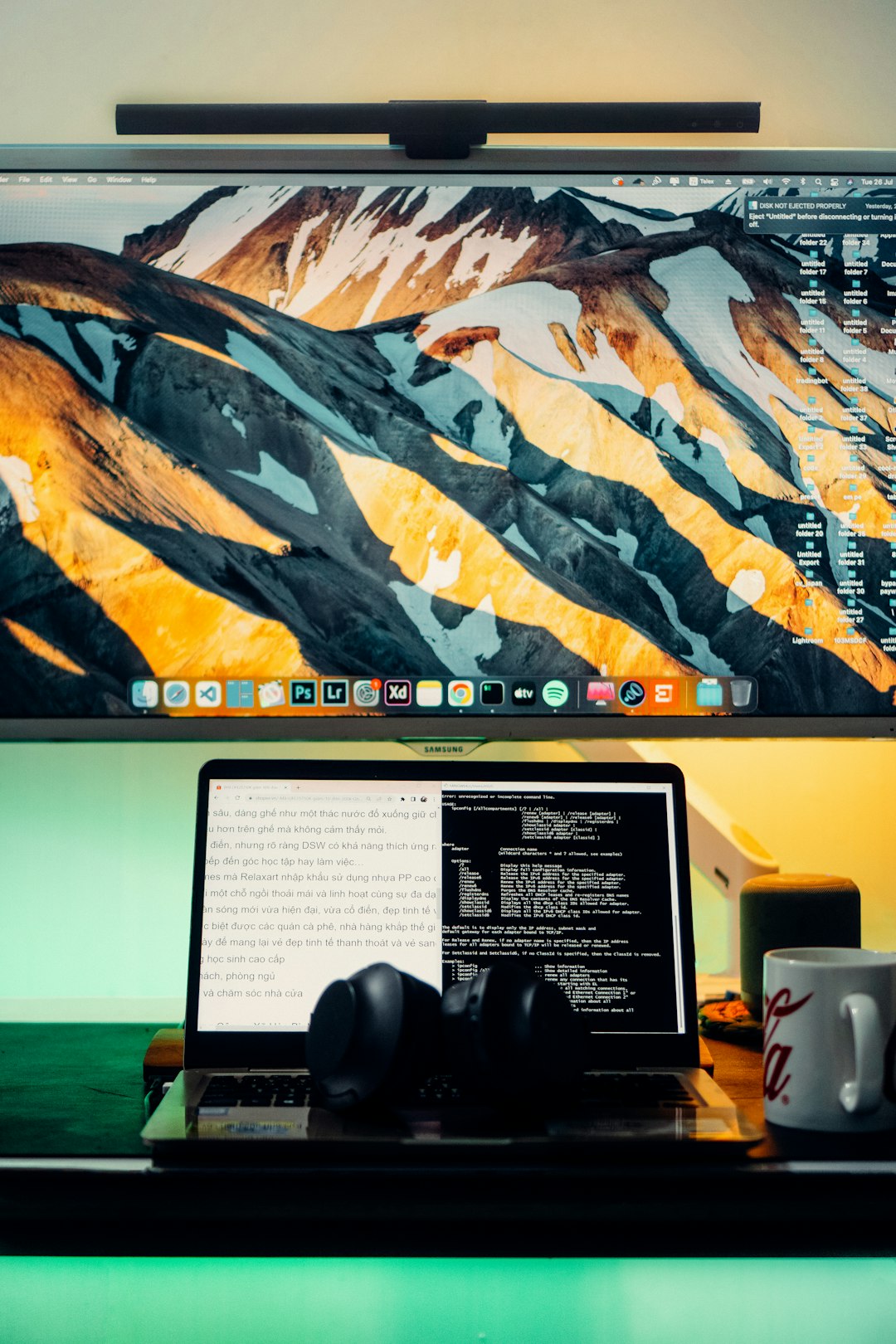
While macOS comes with a variety of beautiful high-resolution wallpapers, they are mostly static and offer limited interaction. By using a Mac wallpaper app, you gain access to a library of dynamic, interactive, and customizable backgrounds that can improve productivity and personalize your workspace. Here are some benefits:
- Live wallpapers: Bring your desktop to life with moving visuals like landscapes, clocks, and data-driven widgets.
- Interactive features: Embed system monitors, calendars, or to-do lists directly into your wallpaper.
- Improved workflow: Display useful information at a glance to help you stay on track.
- Unique aesthetics: Go beyond Apple’s stock images and create an environment that’s truly yours.
Top Mac Wallpaper Apps for Customization
There are several wallpaper apps out there, each offering unique features and focusing on different user needs. Let’s take a look at some of the most popular and useful ones:
1. Wallpaper Engine (via Parallels or Crossover)
Originally developed for Windows, Wallpaper Engine has built a loyal following for its highly customizable and dynamic wallpapers. Although it’s not natively available on Mac, you can run it using Parallels Desktop or Crossover.
Features:
- Live, animated backgrounds
- Customizable widgets and system monitors
- Large online library via the Steam Workshop
Best for: Tech enthusiasts willing to put in extra effort for maximum customization
2. Dynamic Wallpaper Engine for Mac
This app brings some of Wallpaper Engine’s capabilities natively to macOS. It allows for animated wallpapers, interactive overlays, and real-time system info displays.
Features:
- Dynamic time-based wallpapers that change with the hour of day
- Supports multiple displays
- Battery-friendly performance optimizations
Best for: Users who want a balance of performance and visual flair
3. InfoWall
If you’re a productivity geek, InfoWall is for you. This app turns your wallpaper into a productivity dashboard, including everything from to-do lists and weather reports to clock widgets and calendars.
Features:
- Task tracking and to-do list integration
- Real-time weather and clock widgets
- Customizable themes and layouts
Best for: Productivity-focused users and digital minimalists
4. After Dark Wallpapers
This retro-inspired app brings back nostalgic screensavers and wallpapers from the 90s, with a modern twist. It’s fun and unique, especially if you’re looking to express your personal style through your desktop.
Features:
- Retro animations and vintage aesthetics
- Custom screensaver settings
- Supports macOS screen scaling
Best for: Artistic users and fans of retro tech
Getting Started: How to Use a Wallpaper App
Now that you’ve found a few wallpaper apps that suit your preferences, it’s time to dive into using them. Here’s a step-by-step guide to help you get started:
Step 1: Download and Install the App
Most apps are available directly on the Mac App Store or official websites. Download the installer and follow the setup instructions. Be sure to check permissions and give the app access to your screen or wallpaper space when prompted.
Step 2: Browse Available Wallpapers
Explore the library of wallpapers the app provides. Many apps also allow you to search by category or popularity to help you discover new content quickly. Some even support user-created content, so the possibilities are endless.
Step 3: Customize and Configure
Before setting your new wallpaper, dive into the customization settings. Depending on the app, you might be able to:
- Adjust animation speed or behavior
- Choose which widgets to display (e.g., weather, clock, CPU usage)
- Select custom color schemes or themes
Step 4: Apply the Wallpaper
Once you’re happy with your setup, set the wallpaper using the app’s interface. Most apps will automatically apply it, and you’ll see it change instantly. You can usually configure multiple screens or even different wallpapers per display.
Tips for a More Productive and Beautiful Desktop
Customizing your desktop can be both a visual treat and a functional upgrade. Here are some tips to make the most of your setup:
- Keep it clean: Avoid overcrowding your screen with too many widgets to maintain clarity.
- Match time-of-day: Use dynamic wallpapers that adjust according to time for natural ambiance changes.
- Integrate productivity tools: Use wallpaper apps that sync with your calendar or task manager.
- Go minimalist: Sometimes less is more — a simple design with subtle animations can be elegant and calming.
- Monitor system performance: Some widgets can show CPU usage, temperature, and battery status, which helps keep track of your Mac’s performance proactively.
What to Avoid
While customizing your desktop is fun, there are a few pitfalls you should be careful of:
- Using too many heavy animations: These can slow down system performance, especially on older MacBooks.
- Overcomplicating your workspace: Too much information can lead to distraction instead of focus.
- Downloading from untrusted sources: Always ensure you get your apps from official sites or the Mac App Store to avoid security risks.
Final Thoughts
Your desktop is what you see every day when you turn on your Mac, so why not make it work for you? Whether it’s a calming nature animation, a digital dashboard of your tasks, or a nostalgic throwback to the 90s, there’s a world of possibilities with Mac wallpaper apps.
Invest a little time in exploring these tools, and you might find your daily computer use becomes just a bit more delightful, organized, and inspiring.
Happy customizing!