
The Windows operating system is known for its flexibility and broad software support—but sometimes, even experienced users encounter cryptic and frustrating errors. One such error is the infamous Exception Code 0xC0000005. This error can appear in a variety of contexts, from installing software and launching applications to running games or accessing system files. Thankfully, there are proven troubleshooting steps you can follow to resolve the issue, and prevent it from recurring.
TL;DR
Exception Code 0xC0000005 typically indicates an Access Violation error, where an application attempted to access protected memory. This can happen due to bad drivers, faulty RAM, corrupted registry entries, or outdated software. To fix it, start with basic troubleshooting like updating drivers and running system scans, and gradually work toward more complex solutions like editing the registry or reinstalling related software. With patience and a methodical approach, most users can fix this issue without needing a full system reinstall.
What Does Exception Code 0xC0000005 Mean?
This error refers to an Access Violation. Essentially, a program tries to use part of the memory that it doesn’t have permission to access. Windows responds by terminating the program and throwing this exception. You might see it during application startup, in event logs, or as a crash report message.
The error can have several root causes:
- Corrupted or outdated device drivers
- Faulty RAM or memory modules
- Corrupted Registry entries
- Malware infections
- Incompatible software or faulty updates
Step-by-Step Guide to Fix Exception Code 0xC0000005
Step 1: Run a Full System Scan
Before changing settings or updating drivers, rule out malware. Some malicious programs interfere with memory operations and trigger access violations.
- Open Windows Security from the Start menu.
- Select Virus & threat protection.
- Click on Scan options and choose Full scan, then run it.
- Alternatively, use trusted third-party antivirus software like Malwarebytes for a second opinion.
Step 2: Update All Device Drivers
Outdated or corrupt drivers—especially graphics, chipset, and storage drivers—often lead to access violation errors.
- Open Device Manager by right-clicking the Start button.
- Expand the relevant categories such as Display adapters or System devices.
- Right-click on a device and select Update driver.
Check your device manufacturer’s website if Windows says the best driver is already installed.
Step 3: Check for Faulty RAM
Bad memory modules often lead to mysterious system crashes, including Exception Code 0xC0000005. Windows includes a built-in tool to help:
- Press Windows + R, type mdsched.exe, and hit Enter.
- Choose Restart now and check for problems.
- The system will reboot and run the Windows Memory Diagnostic tool.
- View results in the Event Viewer afterward.
If issues are detected, consider reseating or replacing your RAM modules.
Step 4: Use System File Checker (SFC) and DISM
Corrupted or missing system files could also cause access violations.
- Open Command Prompt as administrator.
- Run the following commands, one after the other:
sfc /scannow
DISM /Online /Cleanup-Image /RestoreHealth
The SFC command scans and repairs corrupt system files, while DISM ensures no corruption exists in the system image files.
Step 5: Make Registry Edits (If Applicable)
Warning: Modifying the Windows Registry can be risky. Back up the registry before proceeding.
For some users, this error arises when launching programs due to DEP (Data Execution Prevention) conflicts. You can disable it for specific applications:
- Open System Properties (Right-click on This PC > Properties > Advanced System Settings).
- Click on the Settings button under “Performance”.
- Go to the Data Execution Prevention tab.
- Select Turn on DEP for all programs except those I select, and add the executable causing problems.
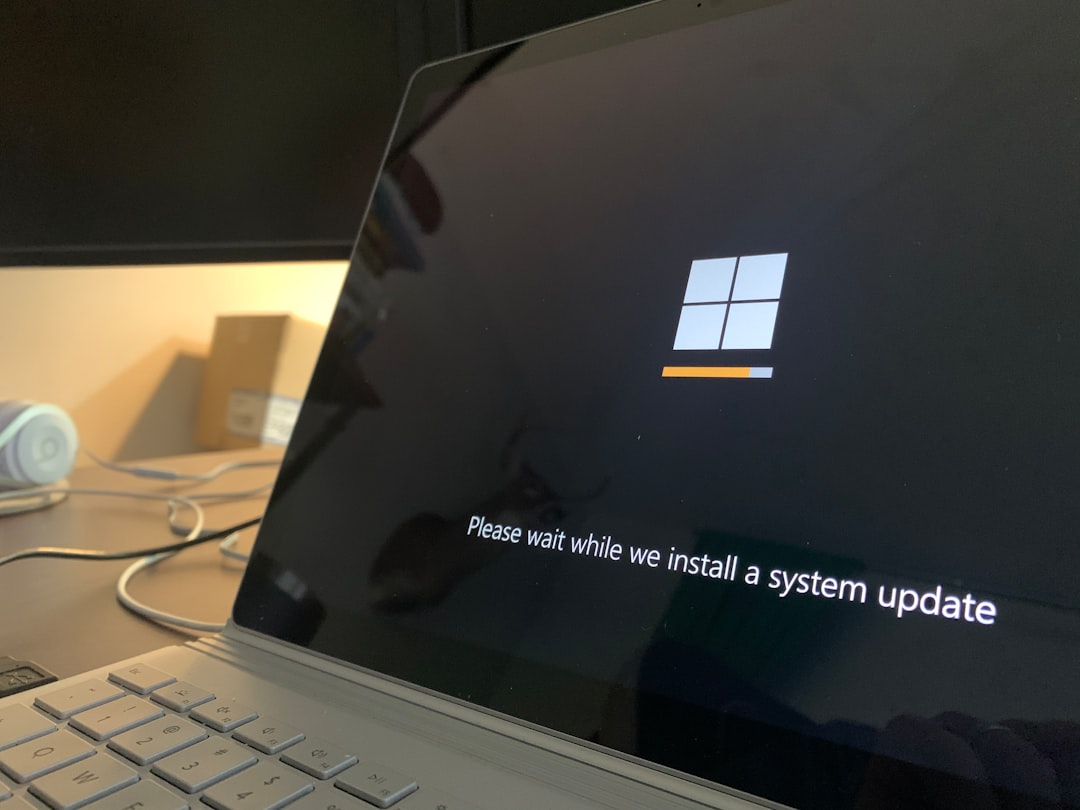
Step 6: Uninstall Problematic Windows Updates
Sometimes, this exception appears after a Windows update introduces incompatibilities. If the error began recently, try rolling back updates:
- Go to Settings > Windows Update > Update History.
- Click Uninstall updates.
- Find and remove the most recent update before the issue began.
Step 7: Reinstall the Application
If this error occurs when using a very specific program or software, the issue may be with that application alone. Uninstalling and then reinstalling the application can often resolve the problem:
- Go to Settings > Apps > Installed apps.
- Find the application, click the three-dot menu, and select Uninstall.
- Restart your PC, then install the app again using the latest installer from the official source.
If this doesn’t work, consider contacting the software’s support team for a version-specific fix.
Step 8: Perform a Clean Boot
Third-party applications and services that start with Windows could be interfering with system processes.
- Press Windows + R, type msconfig, and hit Enter.
- Go to the Services tab, check Hide all Microsoft services, then click Disable All.
- Switch to the Startup tab and click Open Task Manager.
- Disable all unnecessary startup items and reboot your system.
Try reproducing the error. If it disappears, enable items one by one to identify the culprit.
When All Else Fails: Restore or Reinstall Windows
If none of the above methods resolve the issue and it continues to impact daily usage, consider one of the following last-resort options:
- System Restore: Revert your PC to a point before the error began appearing.
- Reset Windows: Go to Settings > System > Recovery and choose to reset, keeping or removing files based on your preference.
- Clean Installation: Back up your data and do a fresh install of Windows. This ensures a clean slate but requires more setup afterward.
Conclusion: Solve the Puzzle, Take Control
Though intimidating at first glance, Exception Code 0xC0000005 doesn’t mean doom for your system. By carefully working through the steps—from scans and updates to advanced debugging—you can identify the root cause and apply a targeted fix. Whether it’s a single stubborn driver or a memory issue, you’re never without tools or options. The key is patience and persistence.
Remember, each system is unique. If after all attempts the issue persists, seeking professional help from a certified technician is a smart path forward. Investing the time to learn about and troubleshoot this error not only gets your system back on track but also boosts your confidence in dealing with technical challenges in the future.