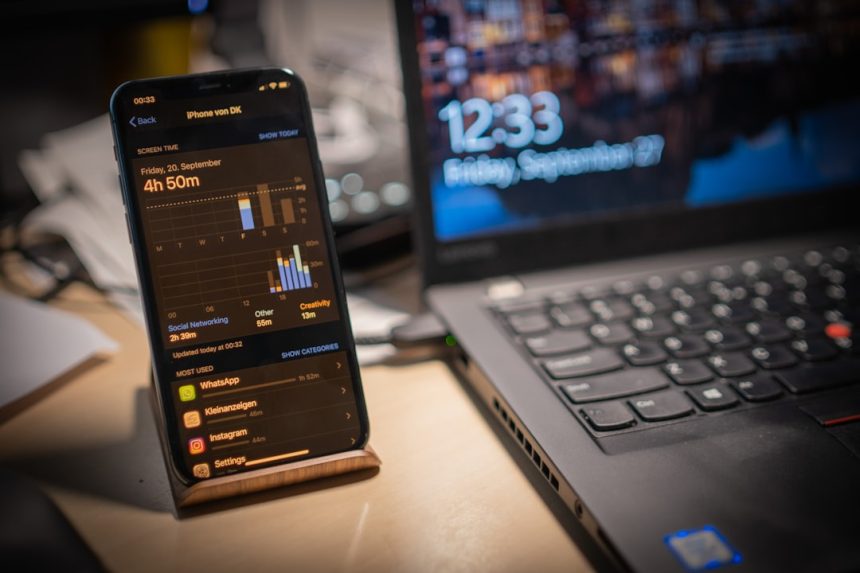
Remote work, digital nomadism, and hybrid offices have transformed the way people interact with their computers. No longer tied to a single desk, professionals now expect secure, seamless access to their devices from anywhere in the world. Whether retrieving forgotten files, running specialized software, or providing IT support, remote desktop applications make it possible to control a computer as if sitting directly in front of it.
TLDR: Remote desktop apps allow users to securely access and control their computers from anywhere using another device. The best solutions combine strong security, cross-platform compatibility, reliable performance, and ease of use. This article highlights four top remote desktop apps—TeamViewer, AnyDesk, Chrome Remote Desktop, and Microsoft Remote Desktop—and compares their features. A helpful FAQ section at the end answers common questions about security, pricing, and setup.
Below are four standout remote desktop applications that consistently rank among the best for reliability, ease of use, and features.
1. TeamViewer
TeamViewer is one of the most recognized names in remote desktop software. It is widely used by IT professionals, businesses, and individuals who need dependable remote access capabilities across multiple platforms.
Key Features:
- Cross-platform support (Windows, macOS, Linux, Android, iOS)
- End-to-end encryption with two-factor authentication
- File transfer between connected devices
- Multi-monitor support
- Remote printing
TeamViewer is particularly popular in corporate environments because of its comprehensive feature set. It allows unattended access, meaning users can connect to a remote computer without someone physically present on the other end. This is ideal for tech support teams and managed service providers.
Pros:
- Extensive feature set
- Highly secure encryption standards
- Easy to use interface
Cons:
- Commercial licenses can be expensive
- Occasional connection detection issues for free users
While TeamViewer offers a free version for personal use, business users typically require a paid plan.
2. AnyDesk
AnyDesk is known for its lightweight design and fast performance. It uses a proprietary codec designed to deliver low latency and high frame rates, even on limited bandwidth connections.
Key Features:
- High-speed data transmission
- Low latency with minimal lag
- Unattended access
- Customizable user interface
- Session recording
One standout quality of AnyDesk is its efficiency. It consumes fewer system resources compared to many competitors, making it an excellent choice for older machines or slower internet connections.

Pros:
- Lightweight installation
- Excellent performance on low bandwidth
- Strong encryption protocols
Cons:
- Free version limited to personal use
- Advanced features locked behind premium plans
AnyDesk appeals to freelancers, remote workers, and IT teams who value speed and simplicity over an extensive list of bells and whistles.
3. Chrome Remote Desktop
Chrome Remote Desktop is Google’s minimalistic remote access solution. It operates directly through the Chrome browser or a dedicated mobile app, eliminating the need for complicated installations.
Key Features:
- Works through Google Chrome browser
- Free for personal and business use
- Simple setup process
- Google account integration
This tool is best suited for users who want a straightforward way to access their personal or office computers without advanced configuration. Setup typically involves installing a browser extension and linking devices via a Google account.
Pros:
- Completely free
- Very easy to use
- No complex configuration required
Cons:
- Limited features compared to premium tools
- No advanced business functionality
Chrome Remote Desktop is ideal for students, remote employees needing occasional access, and users who prioritize simplicity.
4. Microsoft Remote Desktop
Microsoft Remote Desktop (RDP) is built directly into Windows operating systems, making it a convenient option for Windows users. It allows secure connections to Windows PCs through local networks or the internet.

Key Features:
- Pre-installed on Windows Professional and Enterprise editions
- Secure network-level authentication
- Remote app streaming
- Integration with Windows servers
Unlike browser-based tools, Microsoft Remote Desktop is deeply integrated into the Windows environment. IT administrators frequently use it to manage enterprise systems and internal company networks.
Pros:
- No additional third-party software required for Windows users
- Strong enterprise-level security
- Ideal for corporate networks
Cons:
- Limited cross-platform flexibility
- Setup may require network configuration
It is particularly well-suited for businesses already operating within a Windows ecosystem.
Comparison Chart
| Feature | TeamViewer | AnyDesk | Chrome Remote Desktop | Microsoft Remote Desktop |
|---|---|---|---|---|
| Cross-Platform Support | Yes | Yes | Yes | Limited |
| Free Version | Personal Use | Personal Use | Yes | Included with Windows |
| Unattended Access | Yes | Yes | Yes | Yes |
| File Transfer | Yes | Yes | Limited | Yes |
| Best For | Businesses & IT Teams | Fast Lightweight Access | Simple Free Access | Windows Environments |
How to Choose the Right Remote Desktop App
Selecting the right remote desktop app depends largely on specific needs. Users should consider:
- Security: Look for end-to-end encryption and two-factor authentication.
- Compatibility: Ensure support for required operating systems and devices.
- Performance: Low latency connections are essential for smooth control.
- Ease of Use: Especially important for non-technical users.
- Price: Business users may require premium features.
For enterprise environments, comprehensive tools like TeamViewer or Microsoft Remote Desktop may be preferable. Meanwhile, freelancers or individuals may gravitate toward Chrome Remote Desktop or AnyDesk for their simplicity and cost effectiveness.
FAQ
1. Are remote desktop apps secure?
Most reputable remote desktop applications use strong encryption protocols, including 256-bit AES encryption, to secure data transmission. Users should enable two-factor authentication and use strong passwords to enhance security.
2. Can remote desktop apps work on mobile devices?
Yes, applications like TeamViewer, AnyDesk, and Chrome Remote Desktop offer mobile apps that allow users to control computers directly from smartphones and tablets.
3. Do remote desktop apps require fast internet?
While faster internet improves performance, many modern remote desktop tools are optimized for low bandwidth. AnyDesk, in particular, performs well even on slower connections.
4. Is it legal to use remote desktop software?
Yes, remote desktop software is legal for personal and business use. However, it must not be used to access devices without proper authorization.
5. What is the difference between remote desktop and screen sharing?
Screen sharing allows others to view your screen, often during meetings. Remote desktop provides full control of a remote computer, including keyboard and mouse inputs.
6. Which remote desktop app is best for businesses?
TeamViewer and Microsoft Remote Desktop are often preferred by businesses due to their enterprise-grade security, scalability, and administrative tools.
Remote desktop applications have become essential tools in today’s connected world. From troubleshooting a colleague’s device to accessing critical work files while traveling, these apps provide flexibility and productivity across industries. By carefully evaluating features, security, and use cases, users can confidently choose the right solution for reliable remote access—no matter where they are.